
OpenBroadcaster - Storm Streaming Server
In this tutorial, we will show you how to properly configure OpenBroadcast (OBS) to work with Storm Streaming Server. OpenBroadcaster is exceptionally easy to use, while at the same time being a powerful streaming multitool.
Video Tutorial
Connection Setup
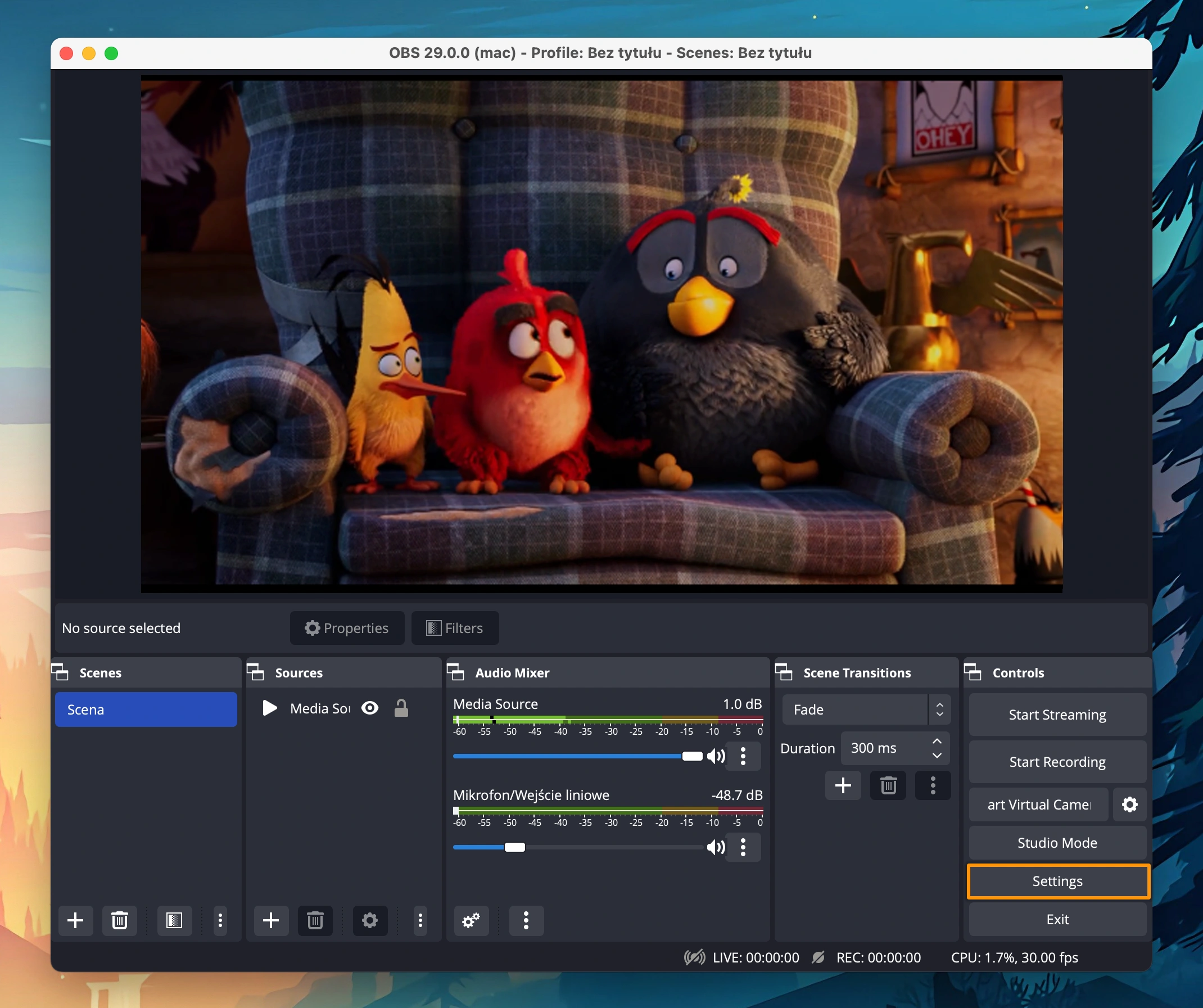
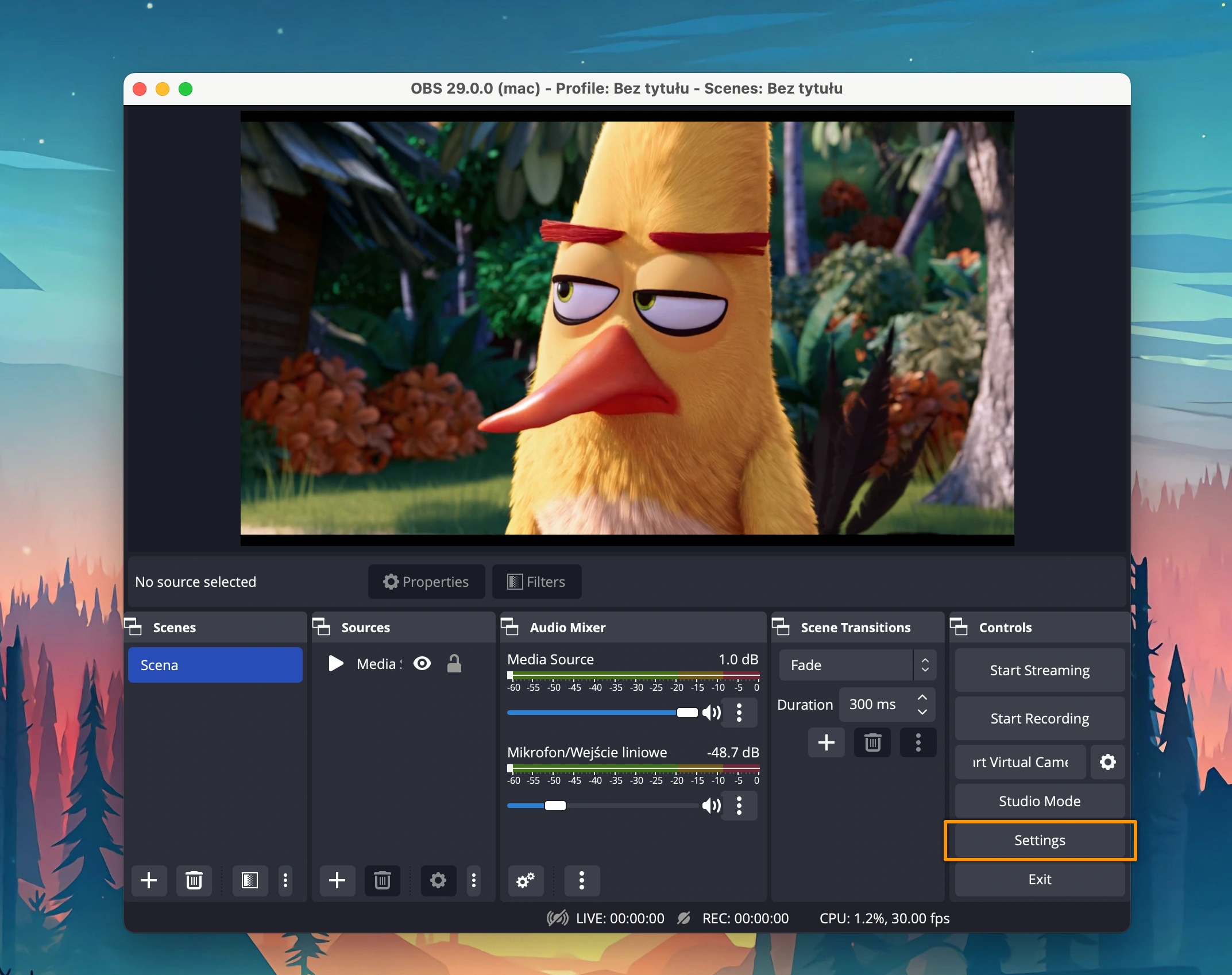
Let's start with OpenBroadcaster itself. After launching the application, select the Settings option in the bottom right corner. A settings window will appear, just select the Stream tab on the left side.
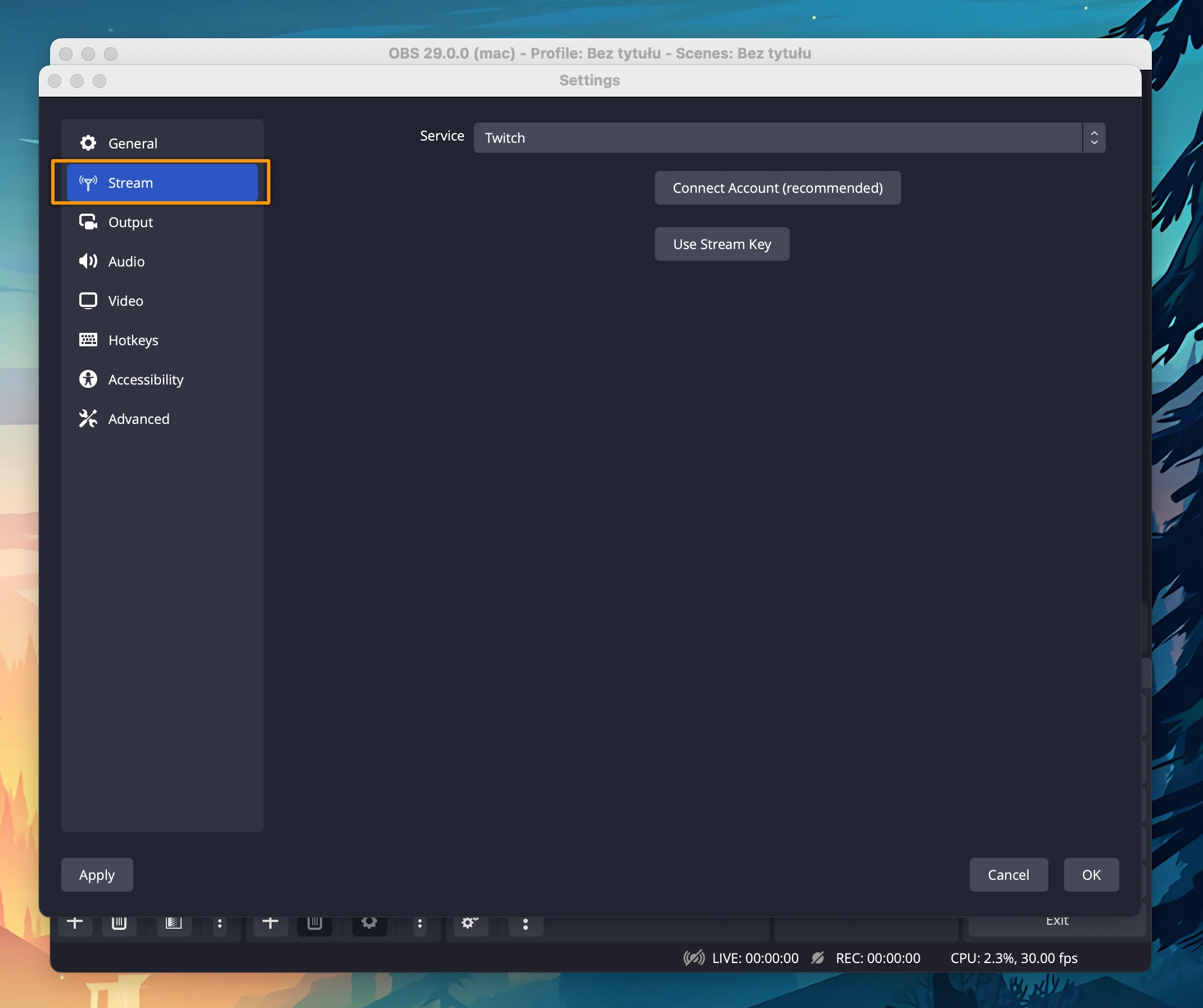
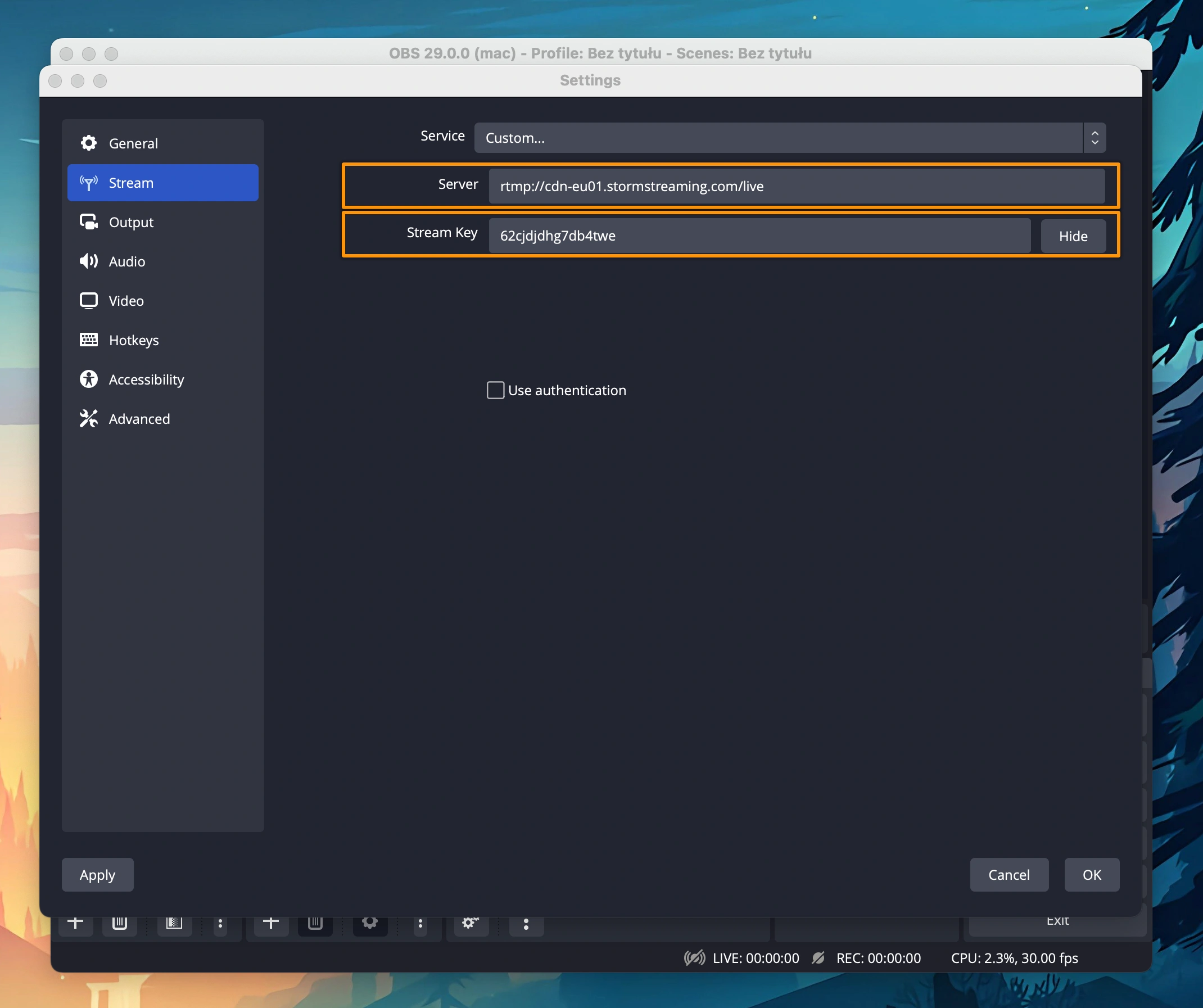
Being already in the Stream tab, we need to choose the right type of service. Switch the Service option to Custom.
At this stage, we need to enter our stream data. In the Server field, please provide the hostname (or IP address) of your server preceded by "rtmp://" and after the slash, provide the name of the application we previously configured on the server (by default in Storm Streaming Server we always have one application called "mono"). Below, there is also an input for a Stream key.
We can also use authentication, provided that the option has been properly configured in the application itself - you can see how to do this in our Mono Application Configuration guide. By default, this option is not active.
Encoder Setup
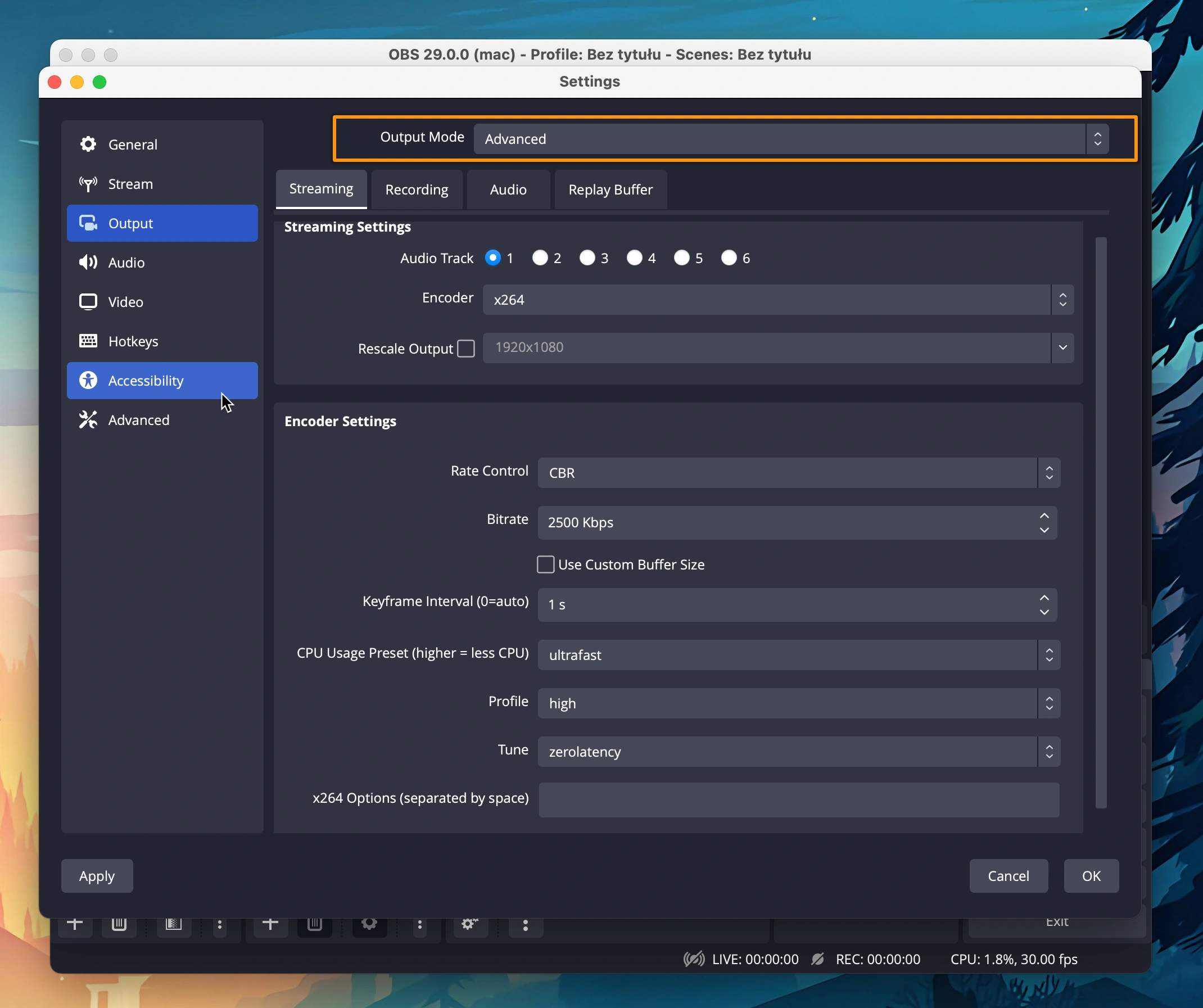
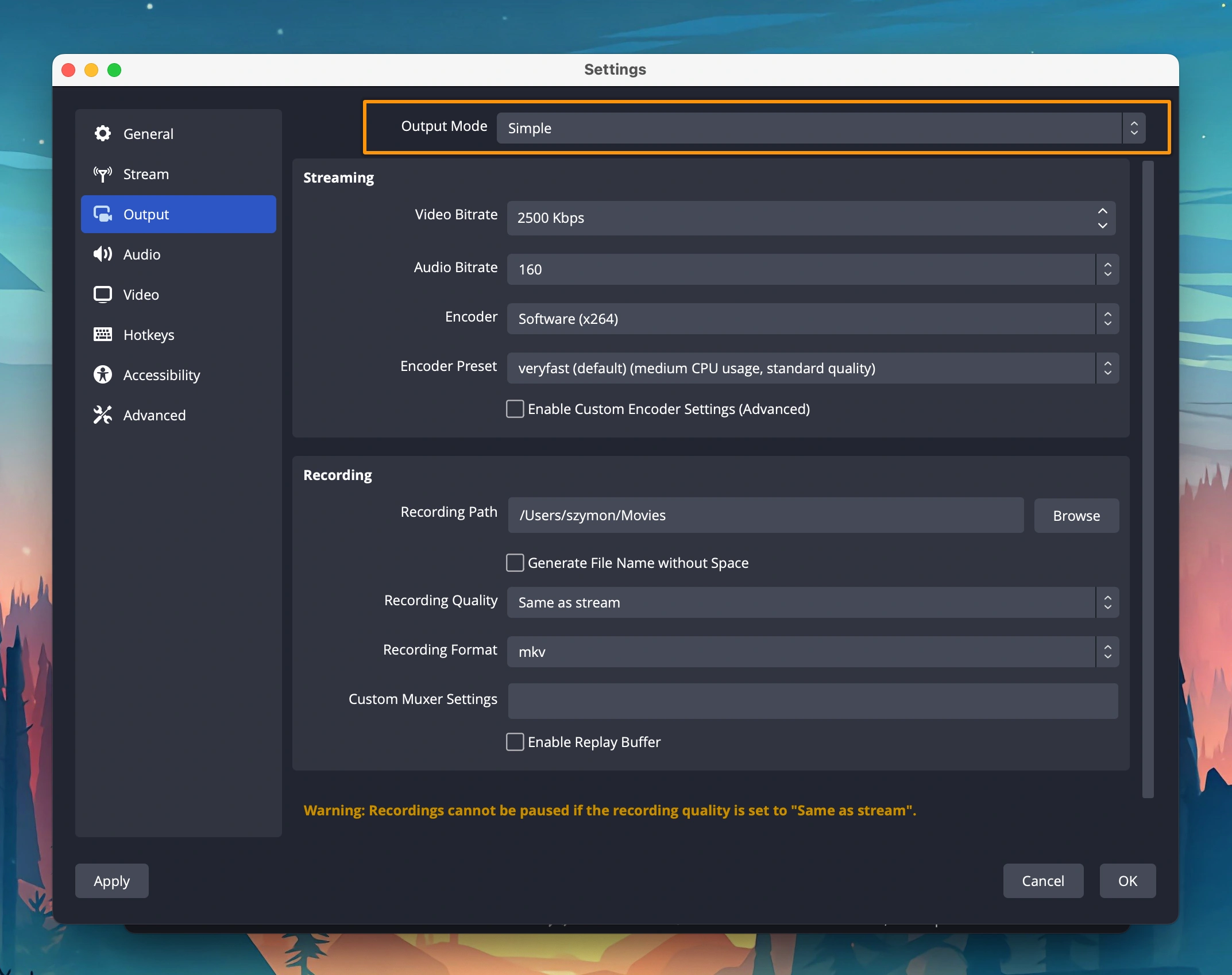
Let's go back to Settings and from the menu go to the Output tab.
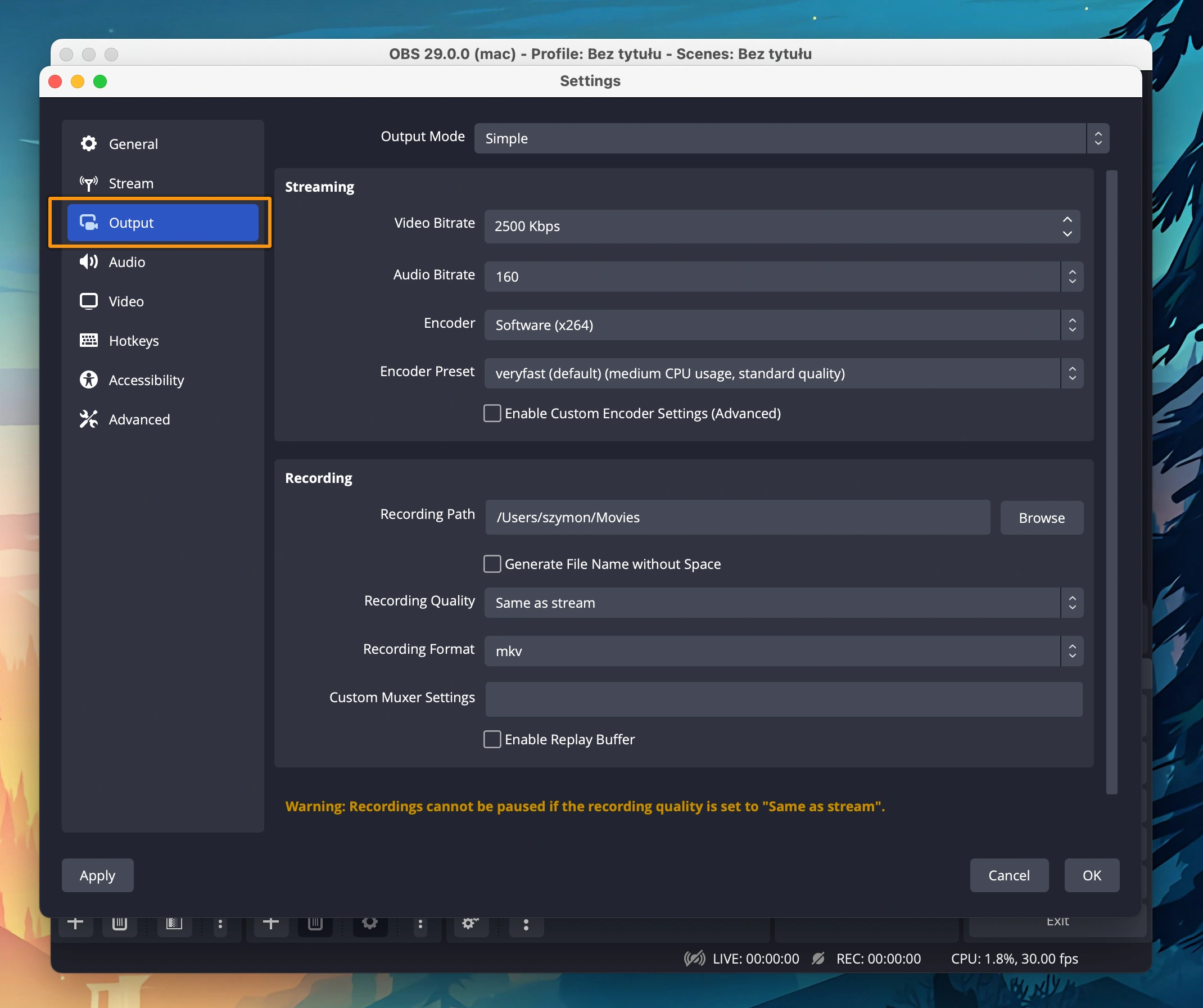
Change the Output Mode (at the top) to Advanced.
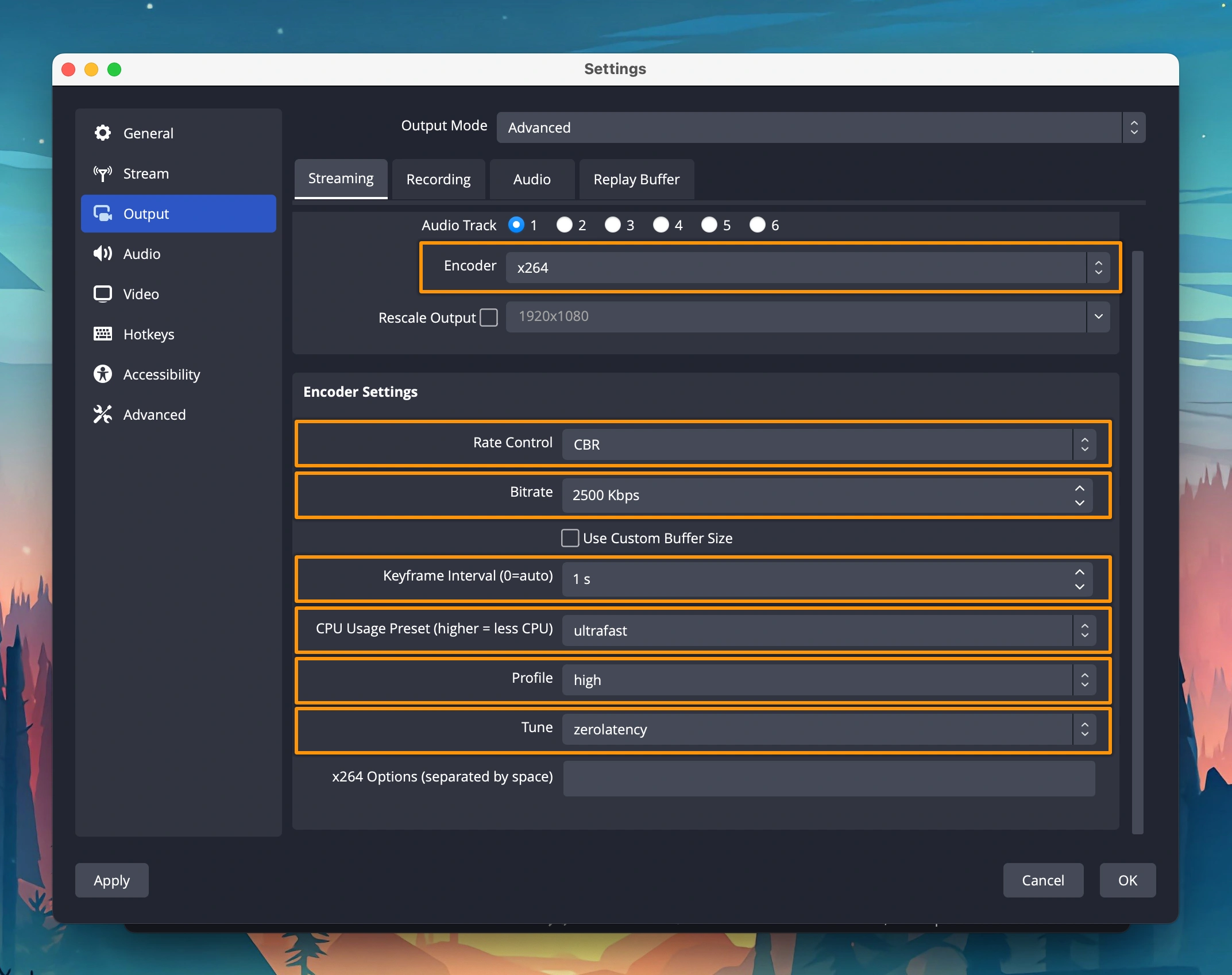
Choose the x264 encoder. It is recommended and well-tested. If you have an NVIDIA graphics card, you can try selecting the NVENC option.
Encoder Settings:
| Parameter | Value |
|---|---|
| Rate Control | CBR |
| Keyframe Interval | 1 s |
| CPU Usage Preset | ultrafast |
| Profile | high |
| Tune | zerolatency |
Recommended Bitrate:
| Resolution | FPS | Bitrate (kbps) |
|---|---|---|
| 1920x1080 | 60 | 6000 |
| 1920x1080 | 30 | 4500 |
| 1280x720 | 60 | 4500 |
| 1280x720 | 30 | 3000 |
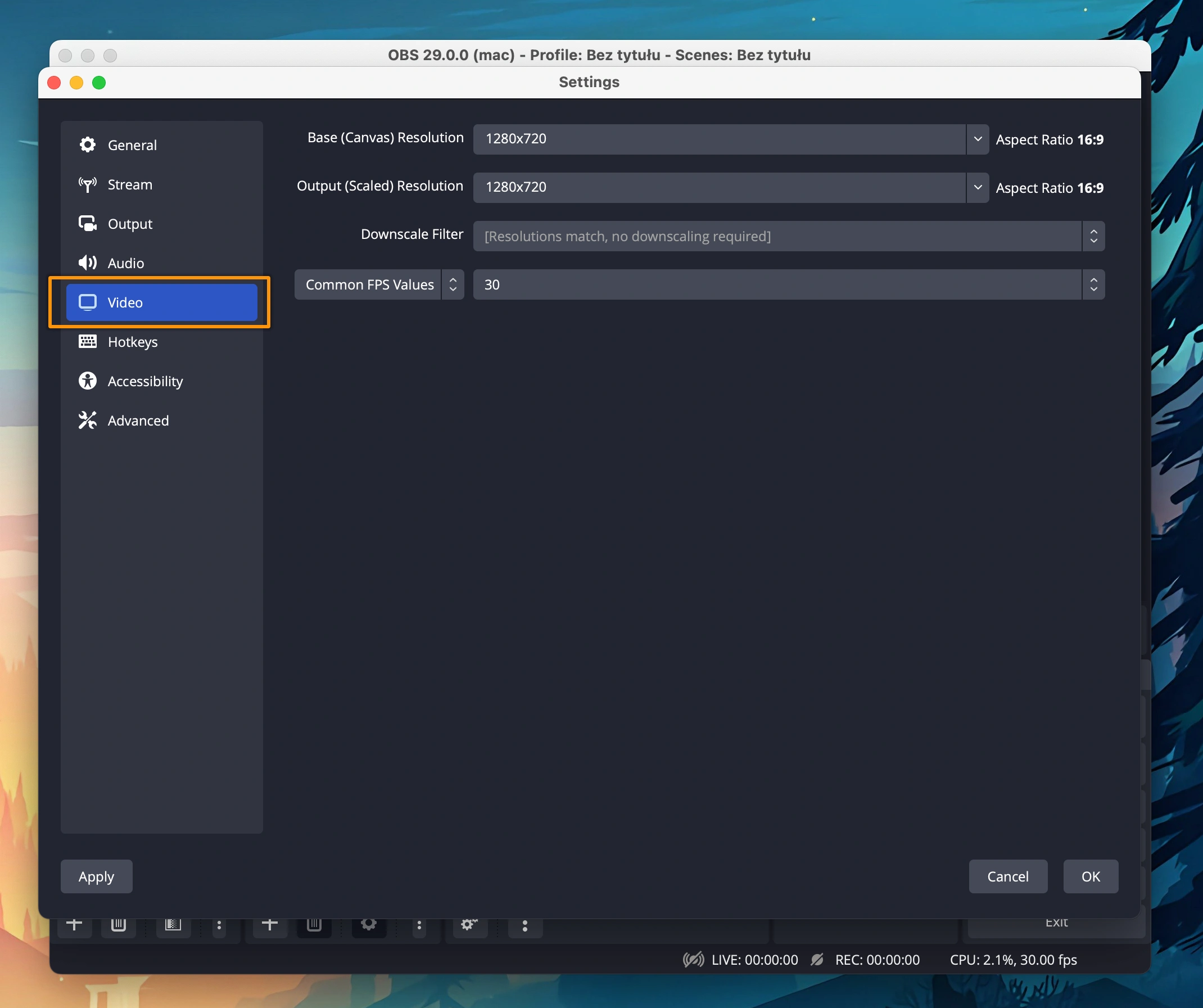
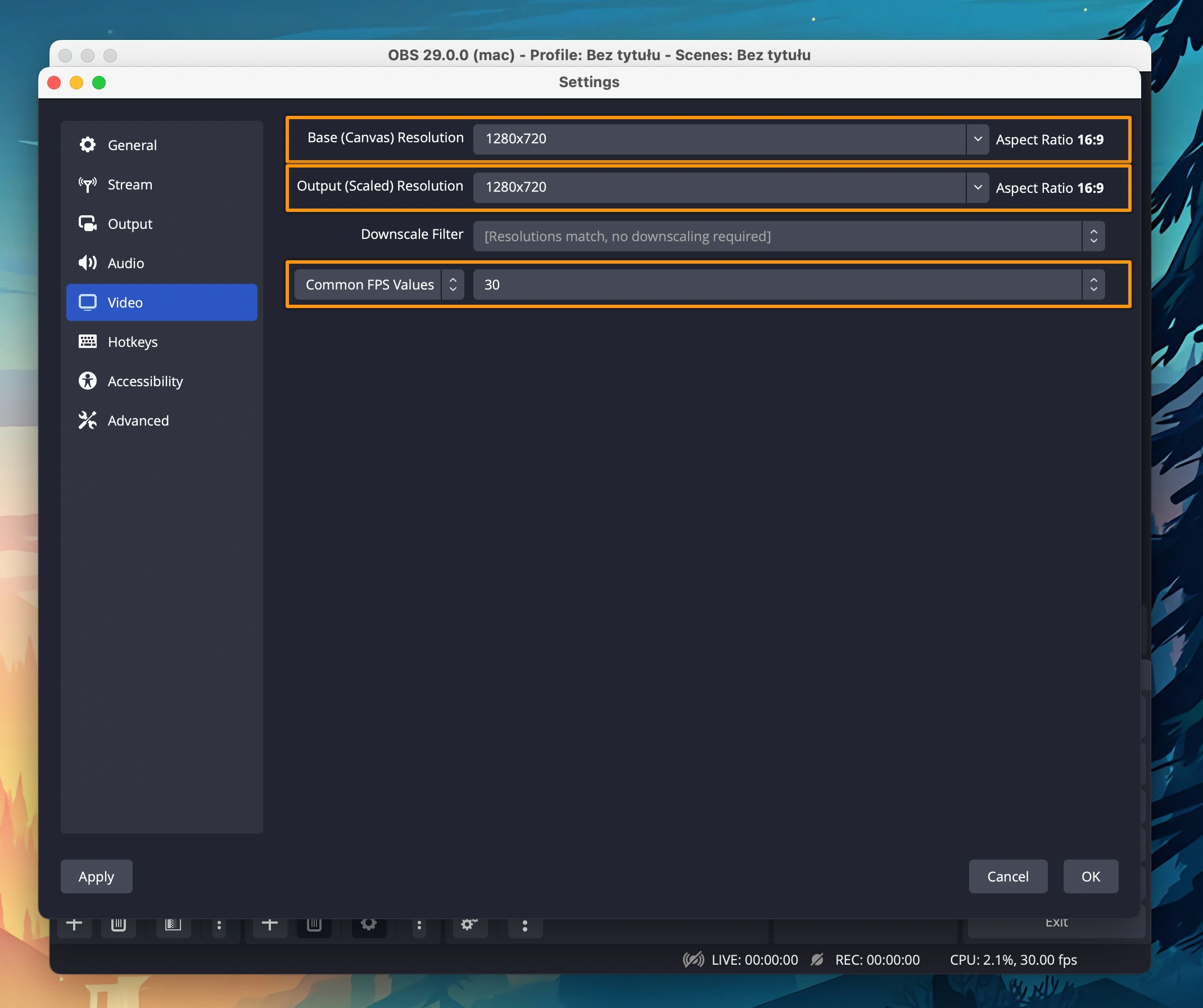
Set the correct video resolution. Go to the Video tab. You will find two parameters: Base (Canvas) Resolution and Output (Scaled) Resolution. Set both to your target resolution.
Finally, confirm the settings by clicking the OK button, and you're ready to start streaming!
If you have any questions or need assistance, please create a support ticket and our team will help you.