
Larix - Storm Streaming Server
In this guide, we show how to start streaming for the Storm Streaming Server service using the commercial software Larix Broadcaster. Larix is available for both iOS and Android operating systems.
Video Tutorial
Connection Setup
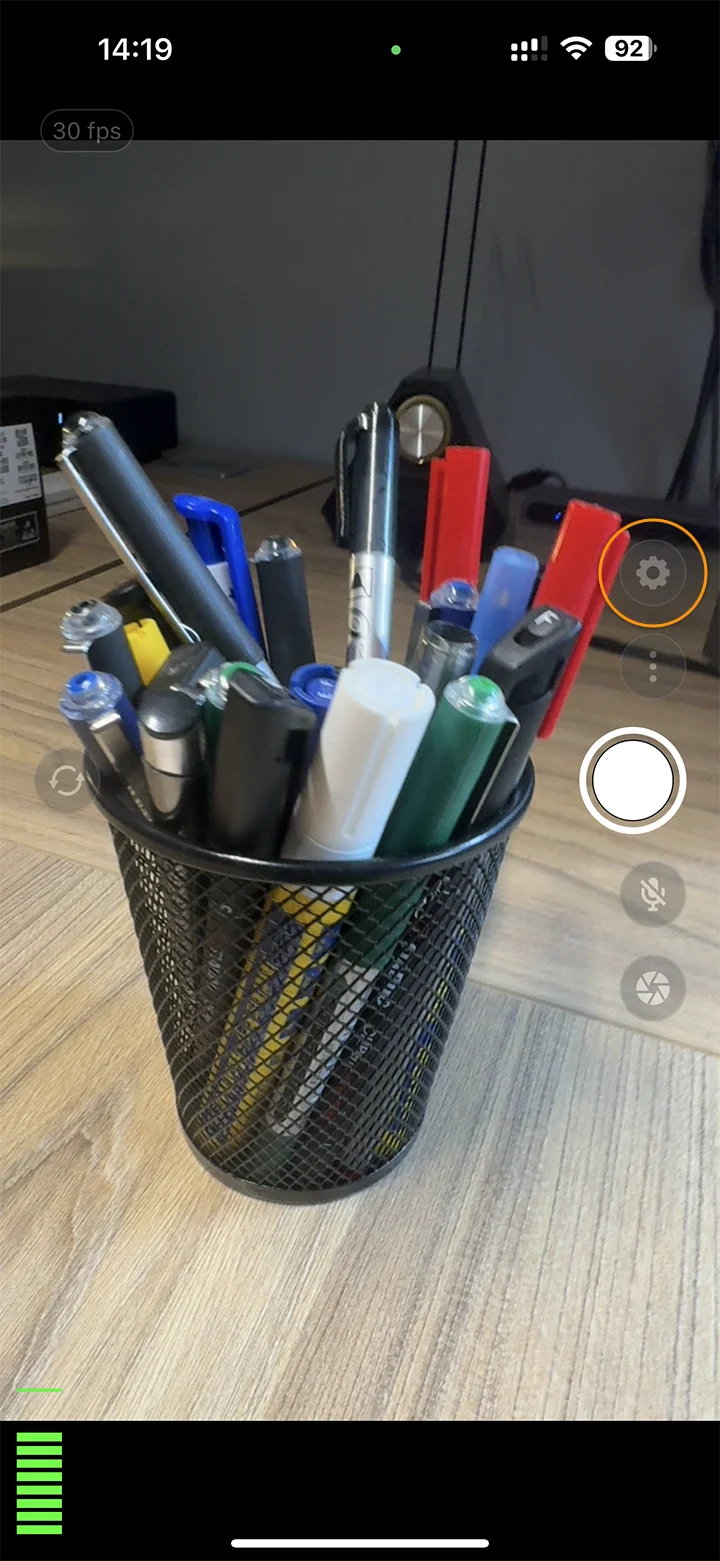
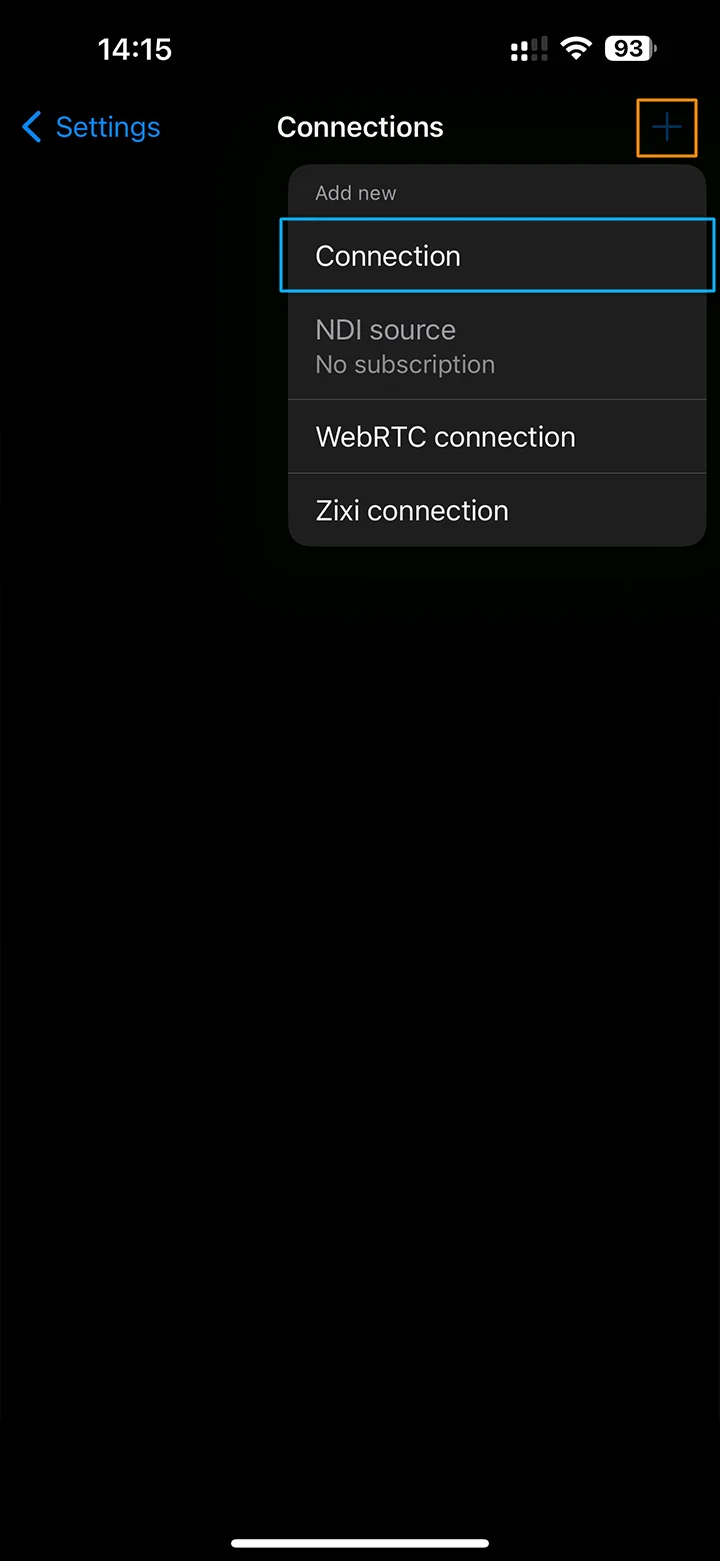
To connect Larix to the Storm Streaming Server, select the gear icon from the main application window. Then choose Connections, click the plus icon in the top-right corner, and select Connection from the list.
In the next step, a window will appear with a list of connection settings. In the Name field, you can enter any name you like, such as StormStreaming Server. Next, you need to enter the full RTMP link. Simply combine your server URL with a stream key, separated by a single slash.
If your Storm application is configured in open mode, the server will accept any stream key and create a stream for you. For managed mode, you'll need to define login credentials and enable authentication on the Larix side. For that, pick "RTMP Authorization" under Target type, which will appear once the URL is in place. Now, all you have to do is provide a username (Login) and a password.
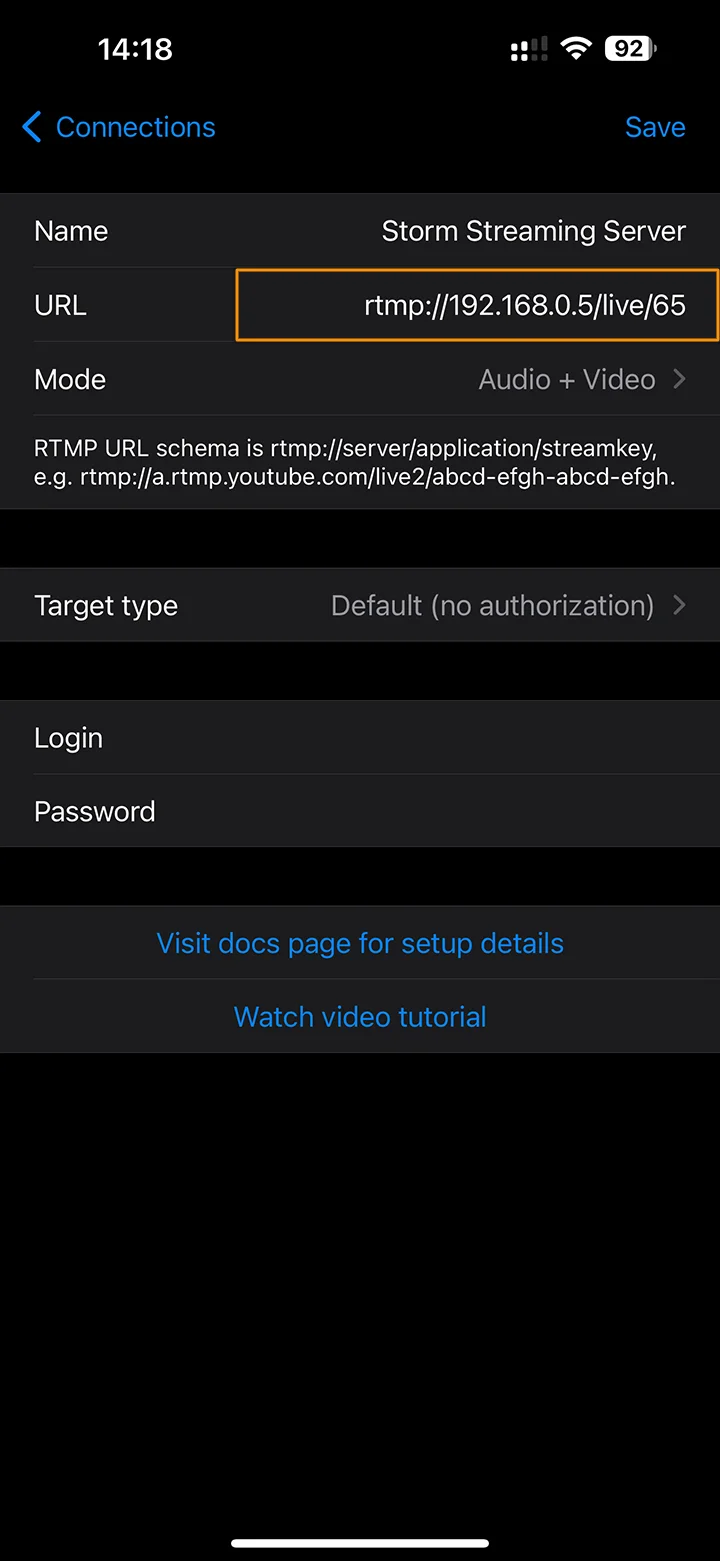
Make sure to save your changes.
Encoder Setup
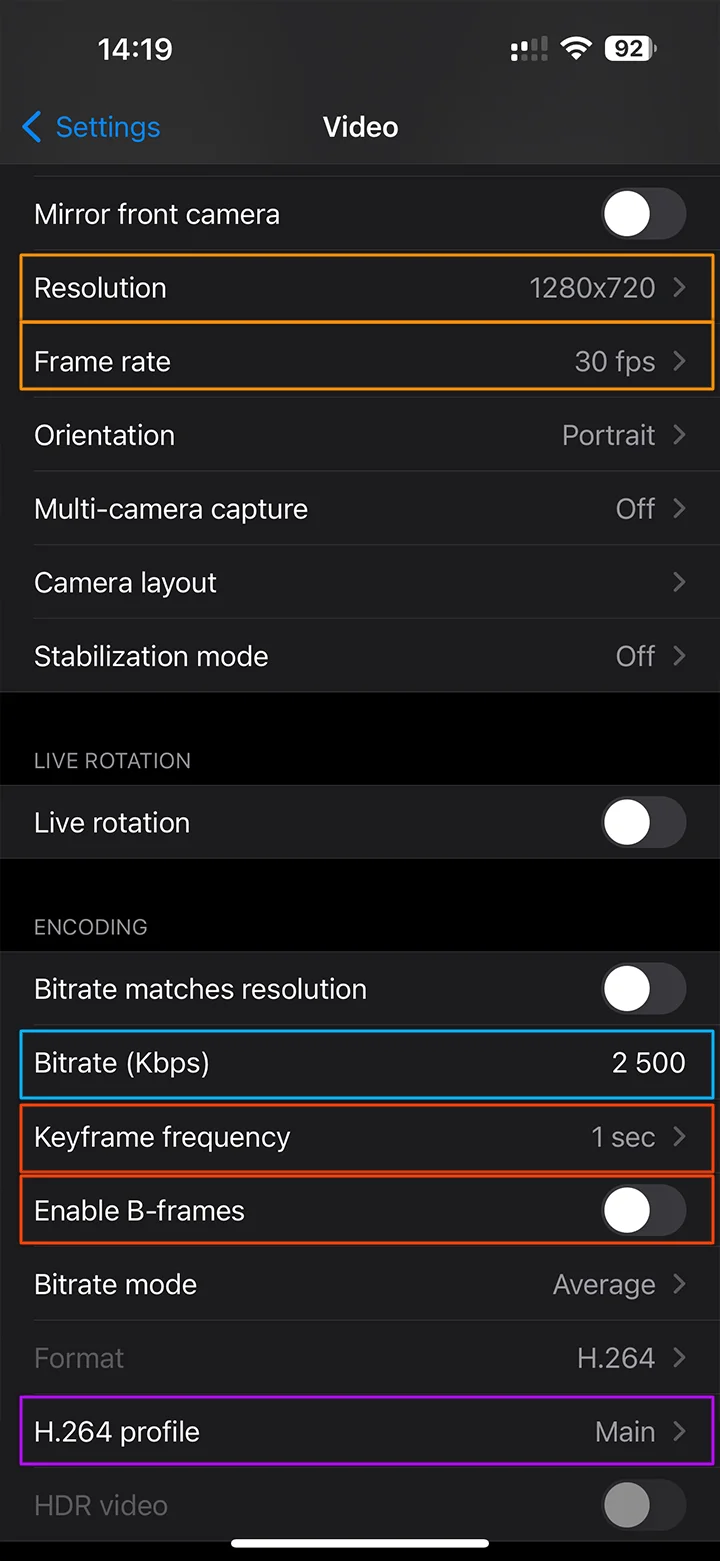
On the main program screen, select the gear icon and then go to Video.
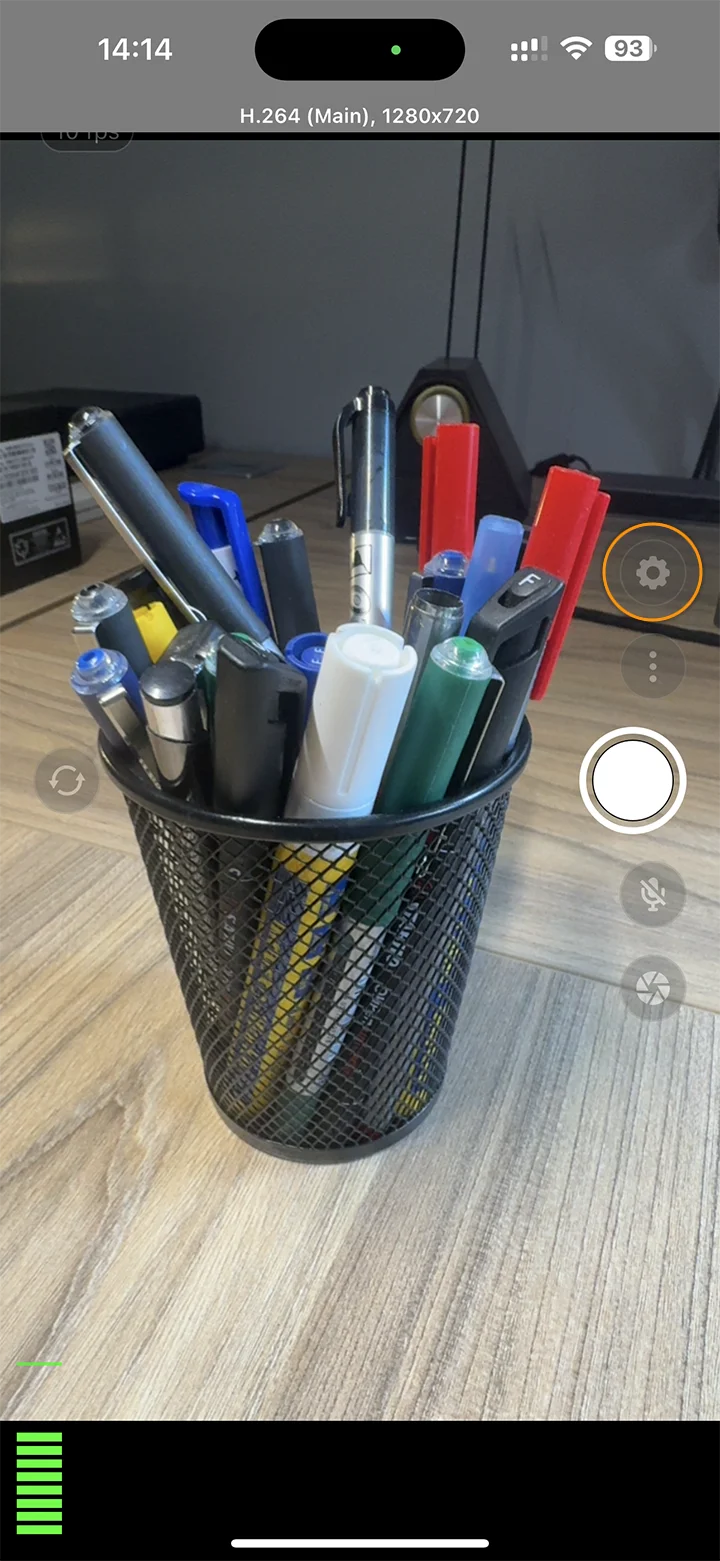
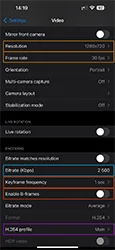
Now apply the following settings:
Resolution - depending on your device capabilities, pick the right resolution like 1280x720. Then under the Bitrate field, make sure to provide a matching bitrate according to this table:
Resolution FPS Bitrate 1920x1080 60 6000 1920x1080 30 4500 1280x720 60 4500 1280x720 30 3000 Enable B-frames - off
H.264 Profile - Main/High
Keyframe frequency - 1 sec
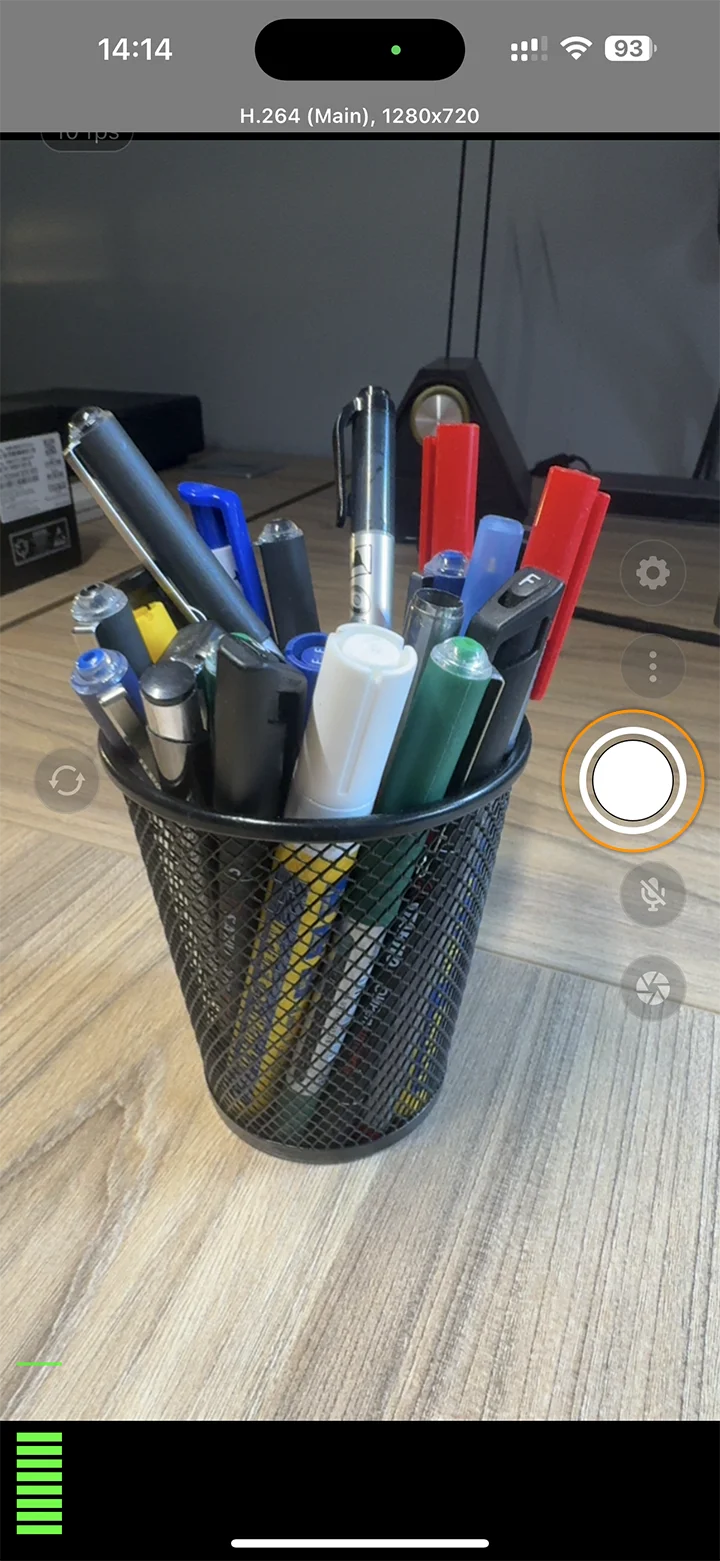
Once all settings are in place, head back to the main application window and start broadcasting.
If you have any questions or need assistance, please create a support ticket and our team will help you.