
Linux/Unix Installation - Storm Streaming Server
Storm Streaming Server includes a user-friendly script-based installer for Unix/Linux systems, which works in both GUI and console environments. Additionally, DEB and RPM package installers are available from the download page.
If you don't have the installer yet, please visit our Download page.
Running the Installer
Before it is possible to run the installation script, it must be granted execution permissions. This can be done using the chmod command.
 bash
bashchmod +x storm_streaming_server_unix_aarch64_3_0_0.sh
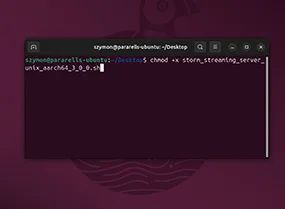
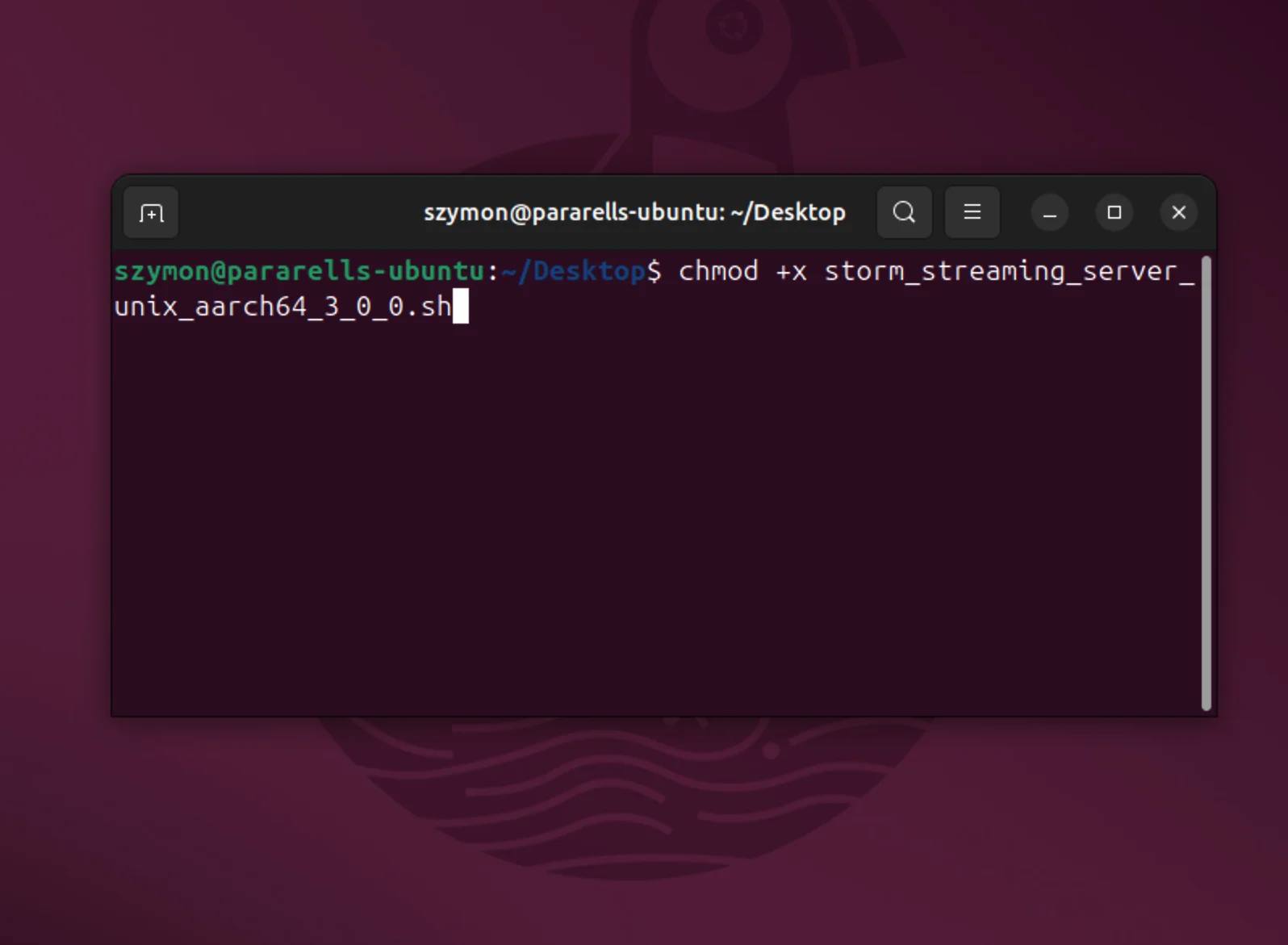
Please note that the installer filename may differ in the latest version from the one mentioned above due to version changes or different architecture (like x64).
Next we start the installer:
bash./storm_streaming_server_unix_aarch64_3_0_0.sh
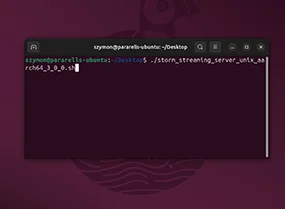
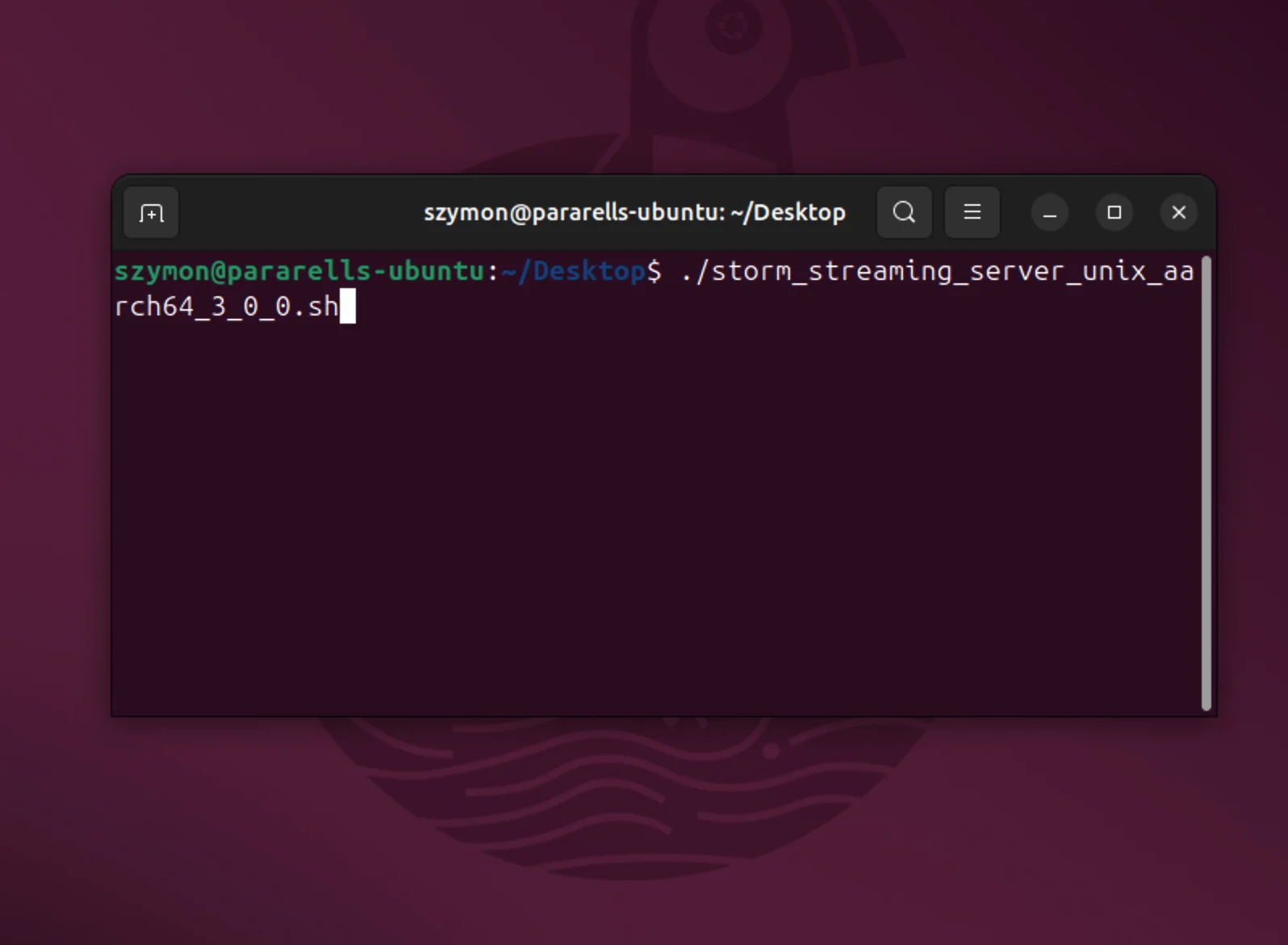
It may take a while before Installer is ready to start.
Installer Steps (GUI Mode)
The installer will now guide you through the following steps:
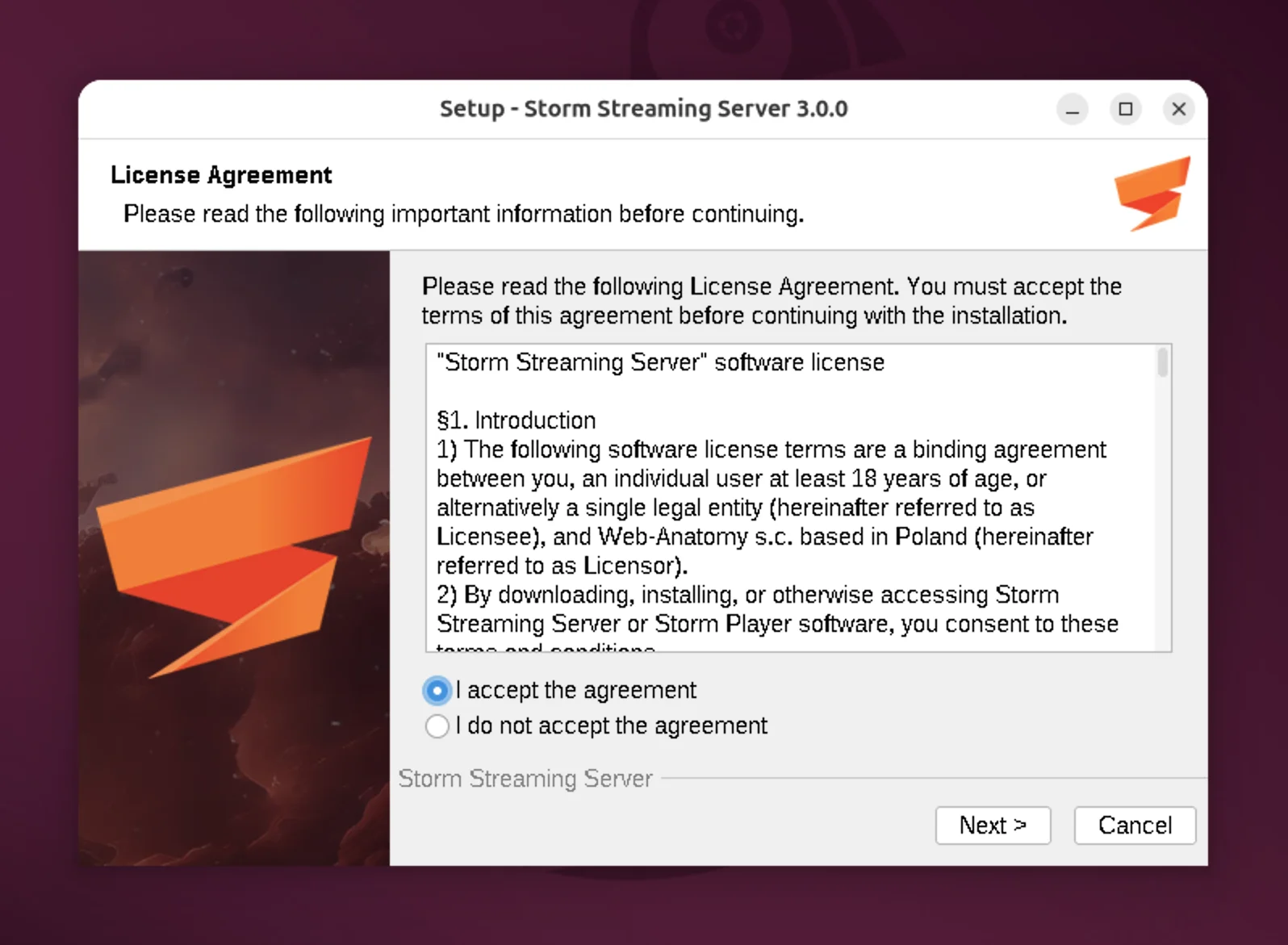
In the first step, you must accept the software license agreement.
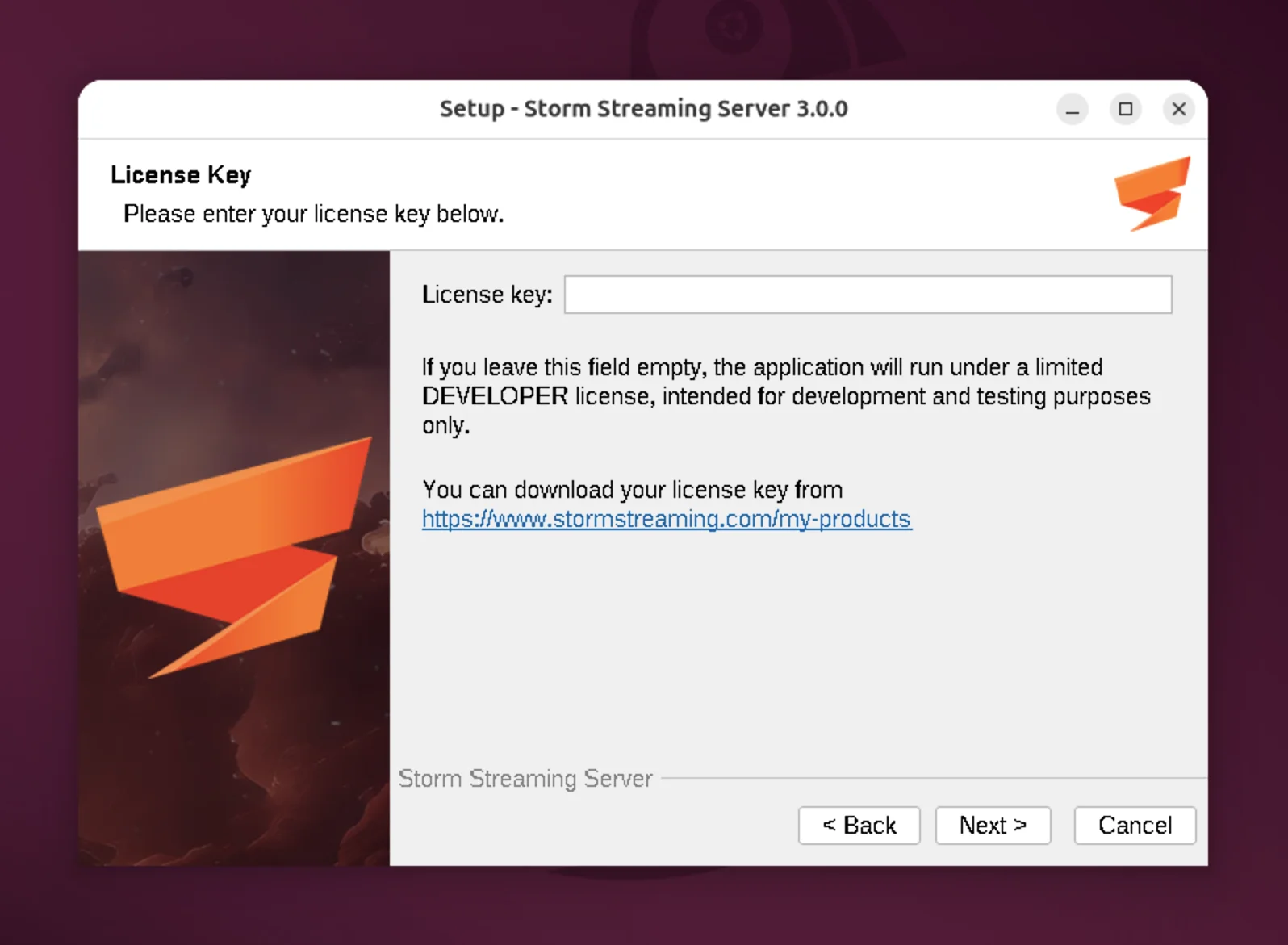
In the second step, you will be asked to enter the program license key. If you don't have a license, you can leave this field blank. A developer license will be assigned instead, which allows up to 5 concurrent streams and a total of 10 viewers.
If you have a commercial or non-commercial license for Storm Streaming Server, you can view it on this page: https://www.stormstreaming.com/my-products
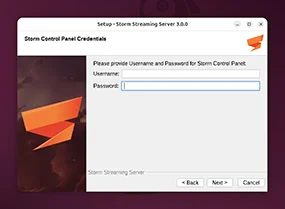
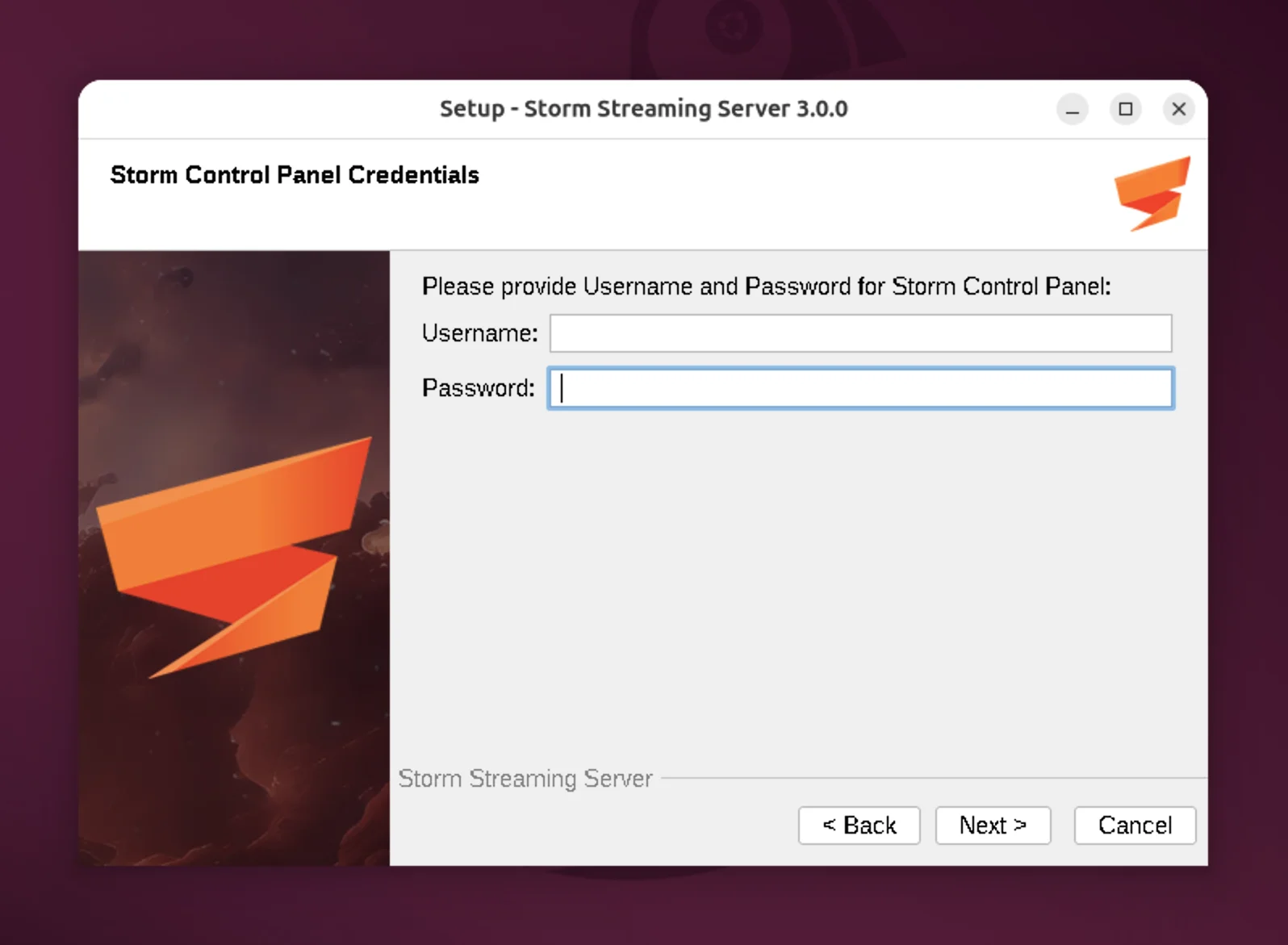
In this step, you need to provide the admin username and password for Storm's web-based Control Panel.
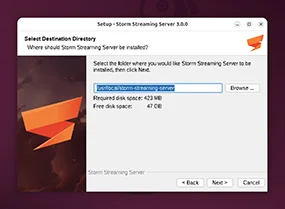
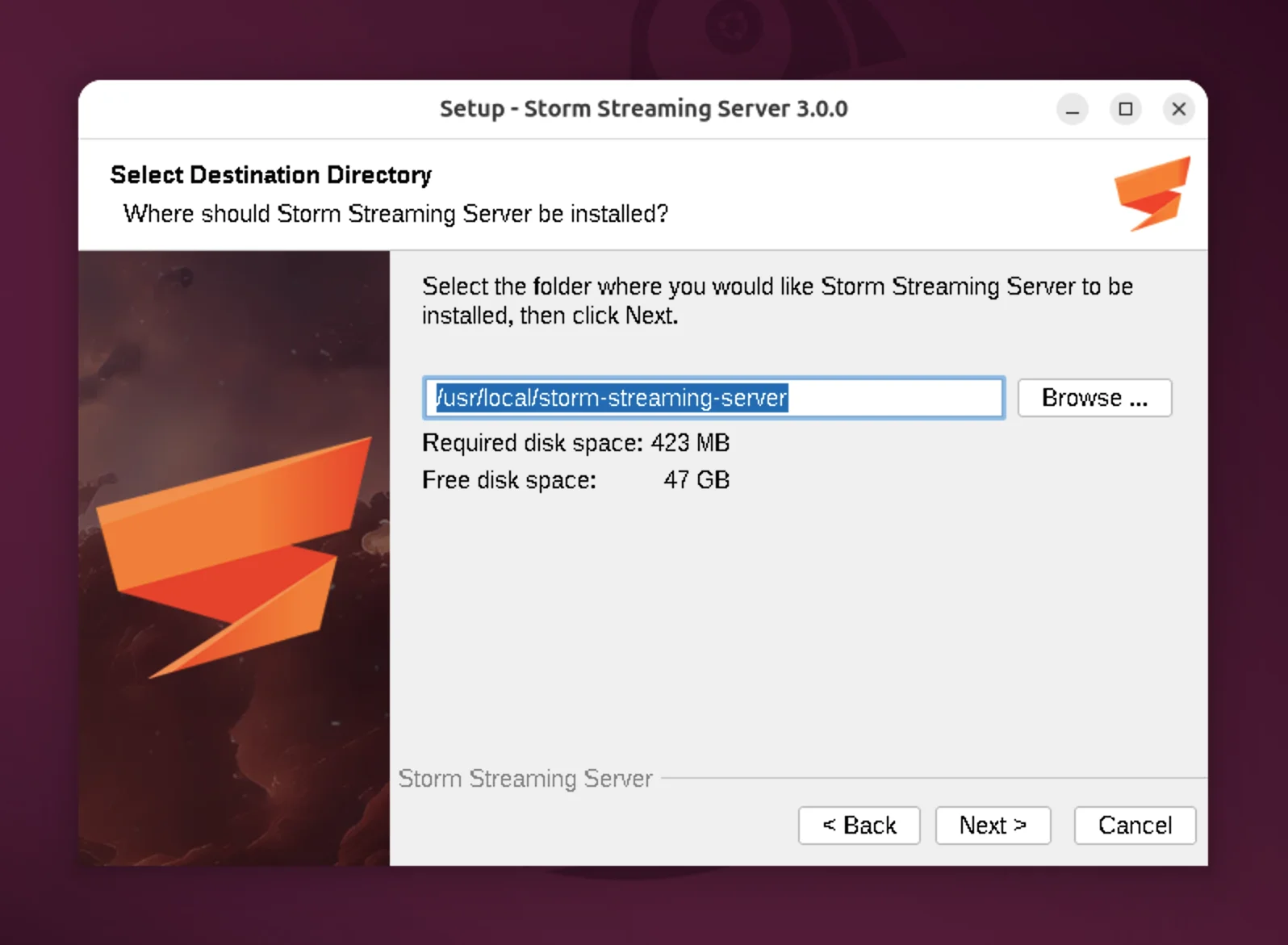
In the fourth step, select the directory where the application will be installed.
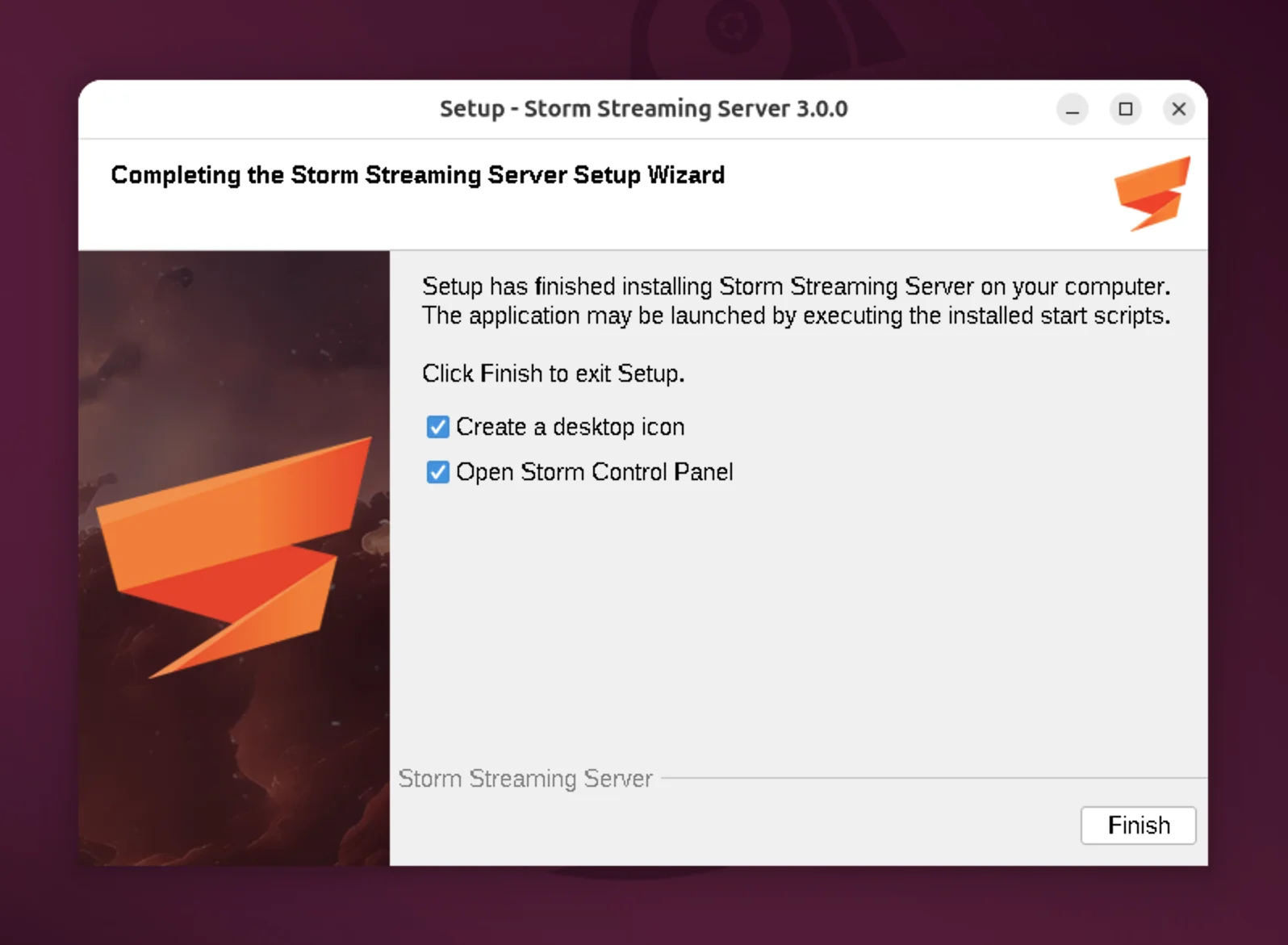
In the final step, you can select a few additional options:
- Create a desktop shortcut
- Open Storm Control Panel
Installer Steps (Console Mode)
If you manage your server via SSH or simply don't have a GUI, the console mode might come in handy. Just add -c as an additional parameter to the installer script.
bash./storm_streaming_server_unix_aarch64_3_0_0.sh -c
The rest is identical to the GUI counterpart.
Basic Configuration
Now that the Storm Streaming Server application is installed, go to the installation folder you specified in step 3. There are a few things to configure here:
JVM Configuration
In the file storm-streaming-server.vmoptions, you'll find JVM options that define, among other things, how much RAM should be allocated to the application. The default file content is:
properties-server
-Xmx16g
-Xms4g
-XX:+UseG1GC
-XX:MaxGCPauseMillis=100
The -Xms and -Xmx parameters define the minimum and maximum amount of RAM available to the application. You should adjust these values to match your hardware resources. For example, to allocate a maximum of 128 GB and a minimum of 32 GB, change the values to:
properties-Xmx128g
-Xms32g
VHost Configuration
The socket configuration for Storm Streaming Server is located in the file config/preferences.xml. By default, it includes the following block:
xml<VHostSettings>
<VHost host="127.0.0.1" isSSL="false" port="1935">
<Protocols>RTMP</Protocols>
</VHost>
<VHost host="127.0.0.1" isSSL="false" port="8080" isControlPanel="true">
<Protocols>HTTP, WEBSOCKETS</Protocols>
</VHost>
</VHostSettings>
This defines two sockets listening on 127.0.0.1 (localhost). Port 8080 handles HTTP and WebSockets connections, and port 1935 handles RTMP. For more information about VHost configuration, including how to enable SSL support, please refer to our VHosts guide.
In order to apply these changes, please restart the server. The following section explains how to stop and start the Storm Streaming Server service.
Control Panel
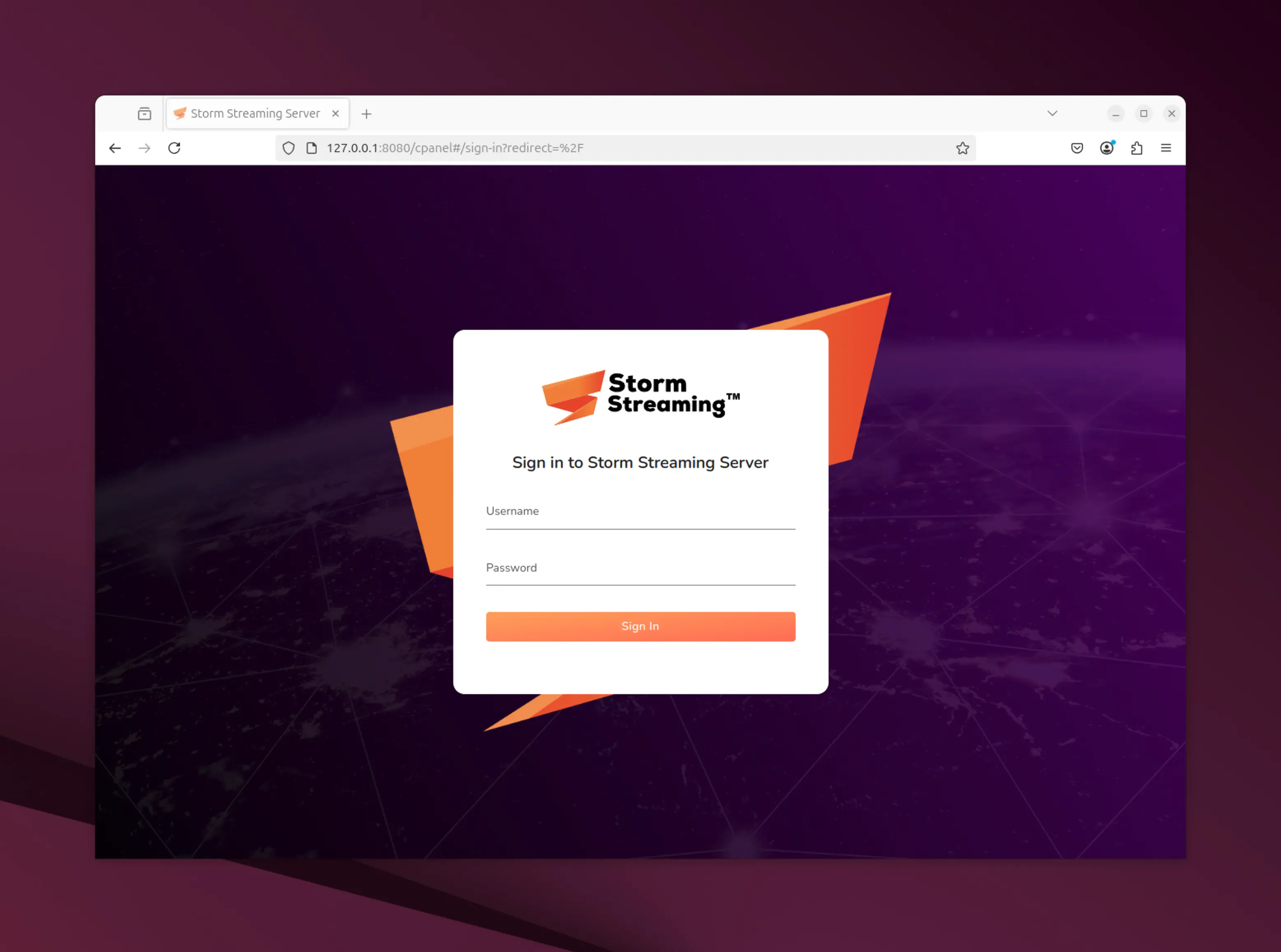
You can access the web-based control panel of the application using the Storm Control Panel shortcut. Alternatively, you can open it directly in any web browser at: http://127.0.0.1:8080/cpanel (the IP address and port may vary depending on your VHosts configuration).
Managing the Service
Since the application operates as a service by default, it will be started automatically with the system. In order to manage the service, you can use the simple sh scripts included in the scripts folder called service-manager.sh (by default in '/Applications/Storm Streaming Server/scripts').
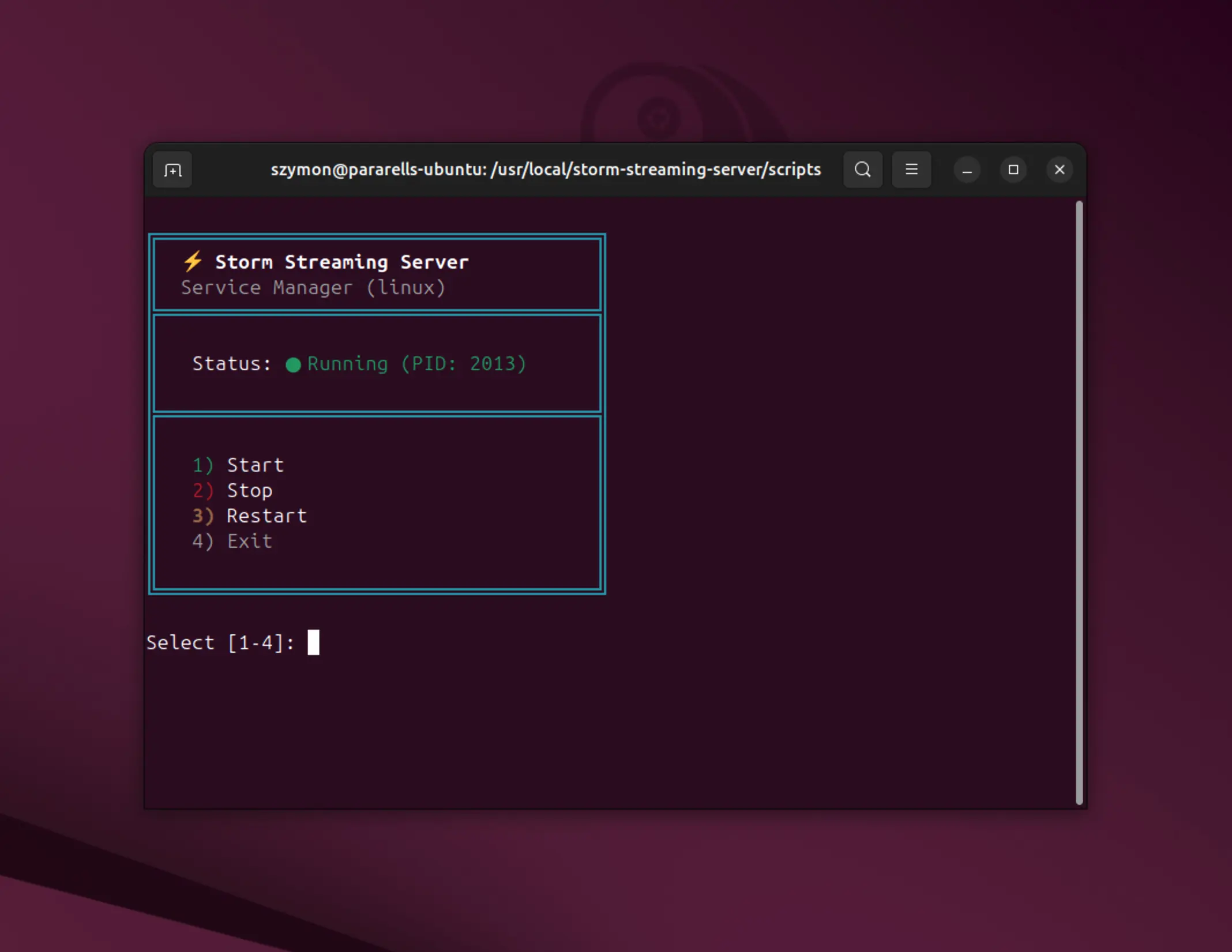
If you prefer, you can also use standalone launch commands:
bashsystemctl status storm-streaming-server
systemctl stop storm-streaming-server
systemctl start storm-streaming-server
systemctl restart storm-streaming-server
Standalone Mode
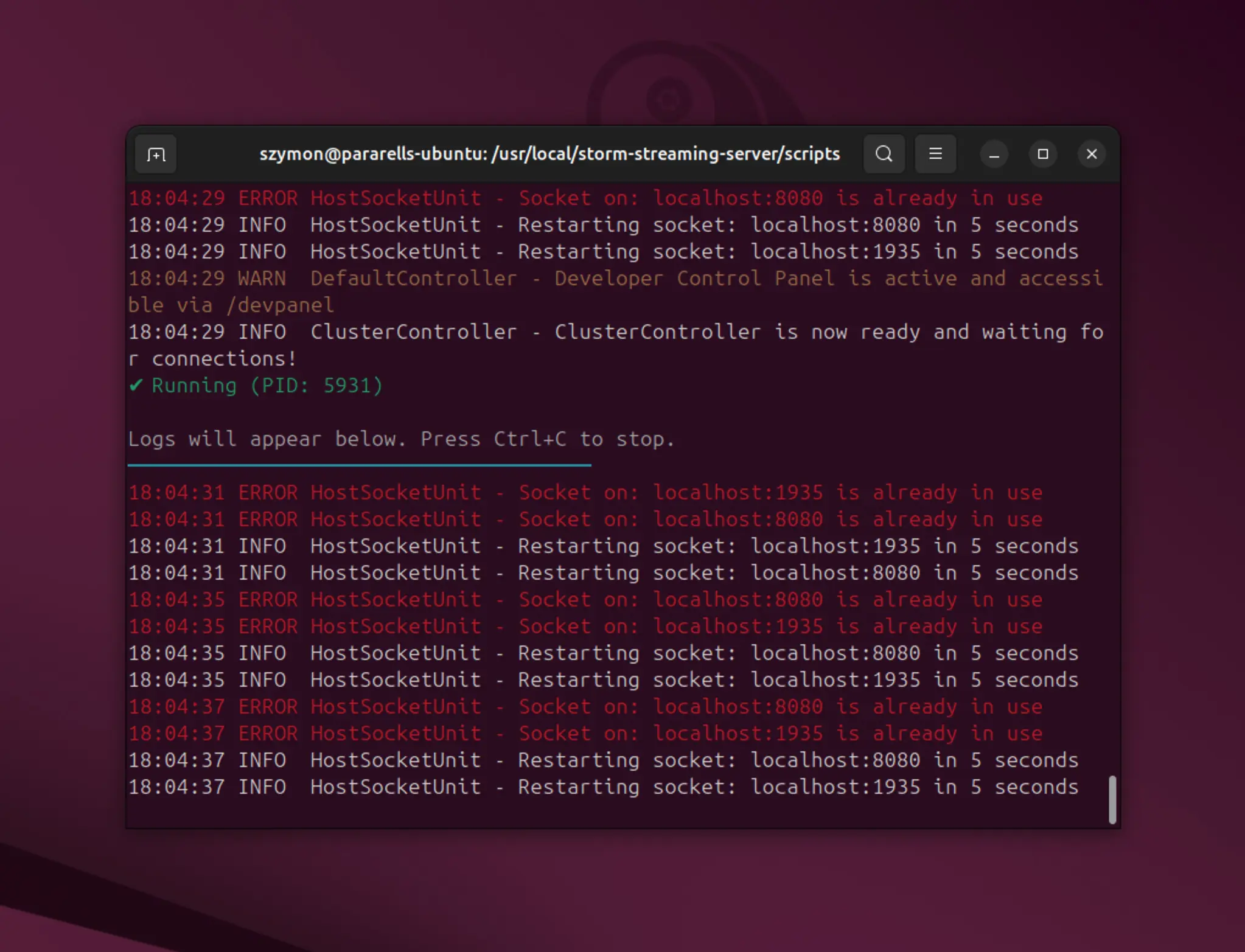
You can also run Storm in standalone mode with standalone.sh (for that one to work you need to stop the service first). This is particularly useful for debugging your configuration, as it will open a terminal window with live logs from the server.
FFMPEG Installation (optional)
If the console shows a message about missing FFMPEG (required for stream transcoding), you can specify its path in the config/preferences.xml file. The configuration is found in the <Transcoder> block, like this:
xml<Transcoder>
<FFMPEG>
<Path>/opt/homebrew/bin/ffmpeg</Path> <!-- optional -->
<Command>-nostdin -i {SOURCE_INPUT} {VIDEO_ENCODER} {AUDIO_ENCODER} -f flv {STREAM_OUTPUT}</Command>
</FFMPEG>
<TranscodeTaskLimit>10</TranscodeTaskLimit>
<ThumbGenerateTaskLimit>5</ThumbGenerateTaskLimit>
<!-- remaining block -->
</Transcoder>
If FFMPEG has been added to the environment variables, you can leave the Path field empty - unless you want to explicitly specify which binaries should be used.
Depending on your operating system, you can use the following command to install FFMPEG via your default package manager:
bashsudo apt update
sudo apt install ffmpeg
sudo pacman -Sy ffmpeg
brew install ffmpeg
sudo pkg install ffmpeg
We encourage you to explore our Storm Streaming Server documentation. It covers individual server configuration elements and provides information about popular protocols such as RTMP, HLS, and more. The samples directory also contains several example video players preconfigured to work with your Storm Streaming Server instance.
For the next step we advise our Quick Start Guide.
If you have any questions or need assistance, please create a support ticket and our team will help you.