
Themes & Customization - Storm Streaming Cloud
This guide will provide you with all the necessary information needed to customize our Web Video Player for Storm Streaming Cloud.
What is Storm Player UI?
Storm Streaming Player UI is a video player for websites. It is fully scalable (adapts to designated sizes) and customizable in terms of the visible user interface. It has also been designed from the ground up to work with Storm Streaming Cloud. Thanks to proprietary technology, it enables video playback with delays not exceeding one second.
What are Themes?
Themes are nothing but predefined sets of appearance and behavior settings that can be configured using Storm Streaming Cloud. It is possible to create any list of Themes and then use them in your own video broadcasts on our platform. Each of our broadcasts can have its own individual theme or use a default one.
Creating a New Theme
First, click on the Settings tab from our side menu, then choose the Themes option. You will see a list of previously created Themes (if any have been created).
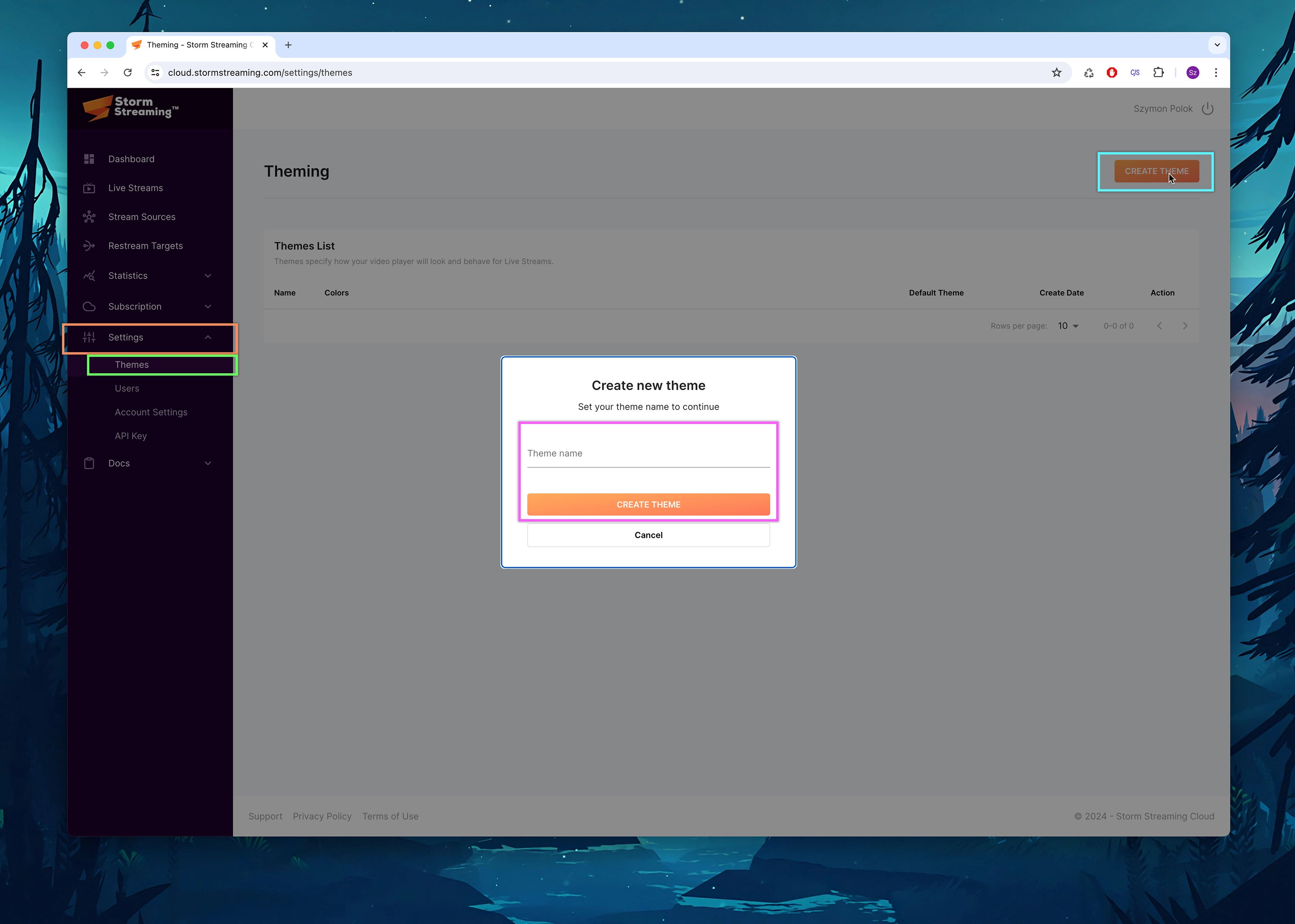
To create a new Theme, click the Create Theme option in the upper right corner of the screen. A popup will appear where you will need to give it a name (for our informational purposes only).
Theme Configuration
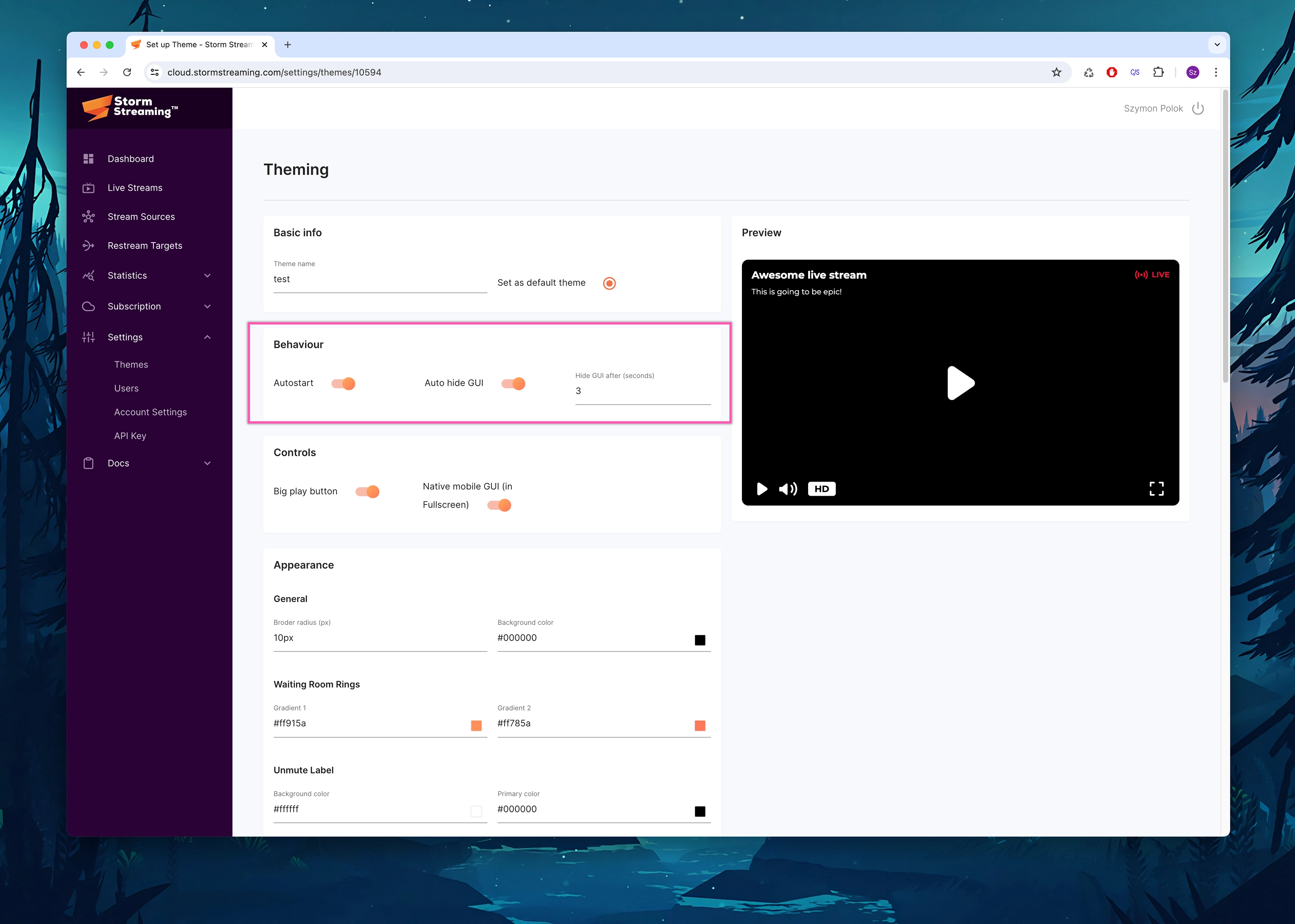
Initially, you have two options related to player behavior:
Autostart – this option forces the player to immediately start playing the stream (if it is published). The player in autostart mode will always be muted due to the policy of most web browsers like Chrome or Safari.
Auto hide GUI – activating this option allows the user interface to hide when the user does not interact with the player (e.g., does not move the mouse over it). As soon as this interaction occurs – the interface immediately reappears. In the input below, you can also decide after how many seconds of inactivity the interface will hide (we recommend setting it to 3 seconds).
Big play button – normally, when the player is not playing a video, a large play button is visible in the center. If you want to hide it (e.g., to expose the Poster underneath), you can disable this option so that it does not show.
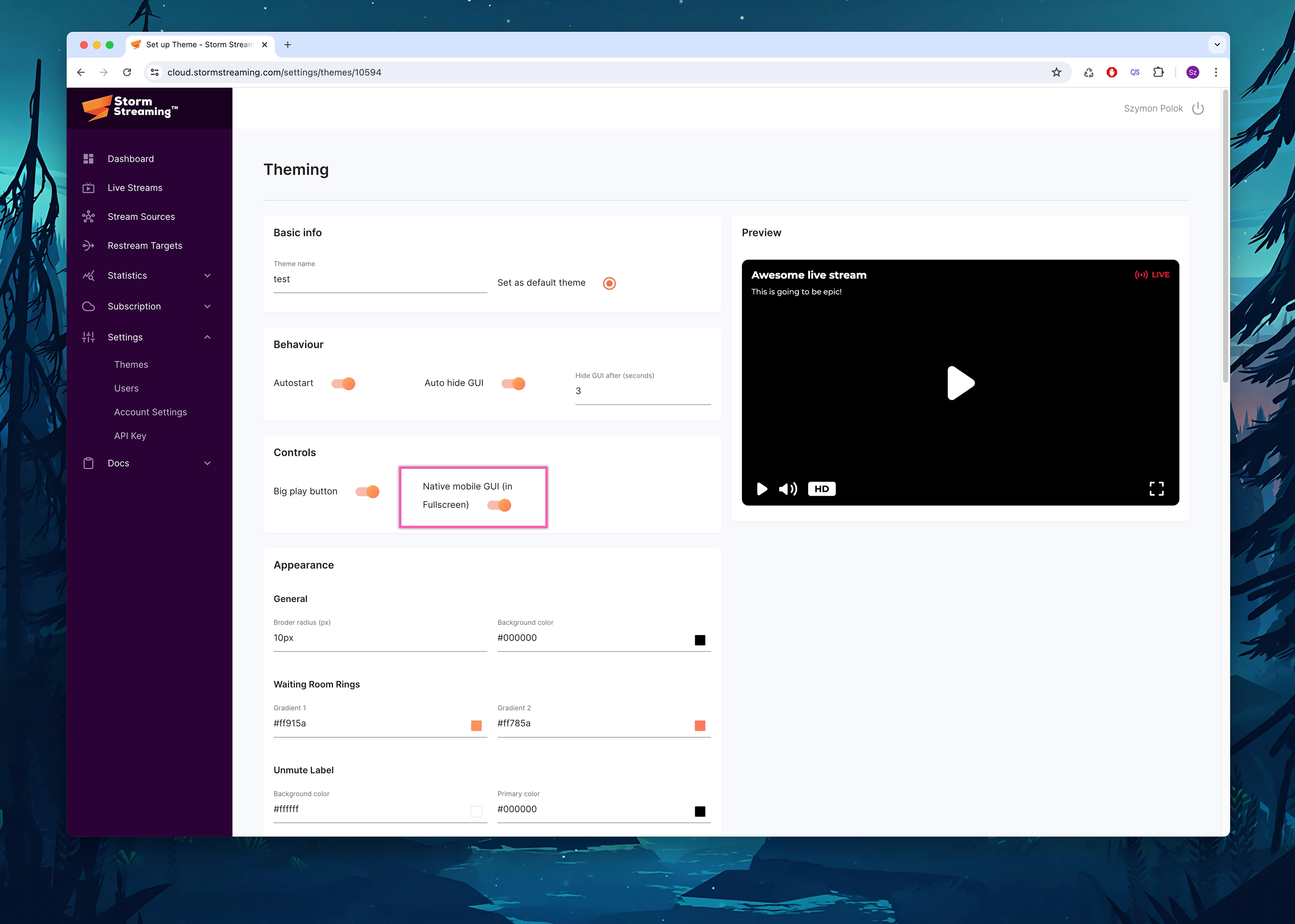
Native mobile GUI – this advanced option decides how the player will function in FullScreen mode on mobile devices. When this option is checked, the native player for the operating system is displayed. It does not have the standard user interface, but it is easier to control. Disabling this option will cause the player to fill the browser window, covering everything on the subpage and blocking scroll options (until this mode is deactivated).
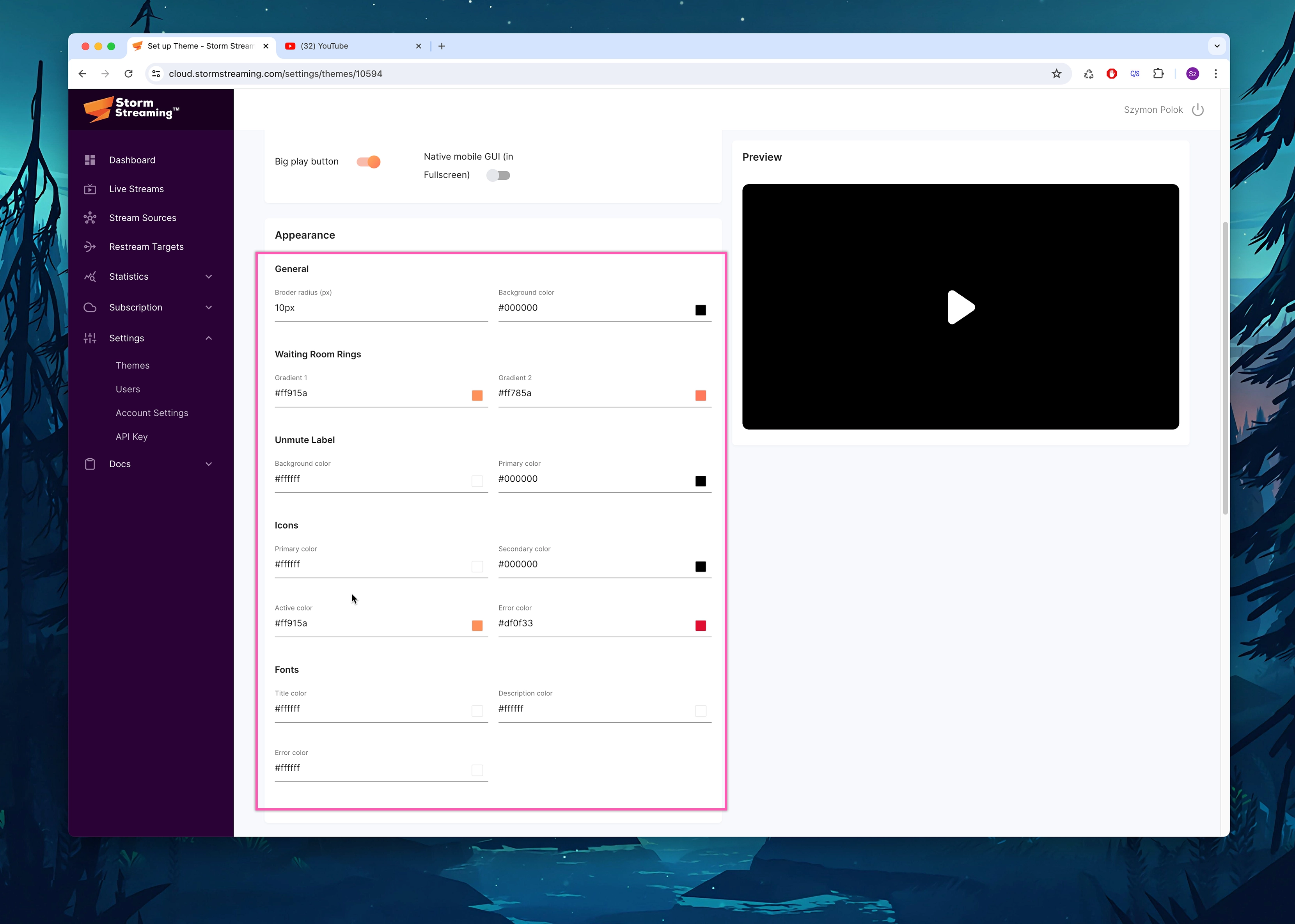
Here, we have a list of all graphical elements that we can set, for example, the color. By clicking on the square to the right of the input with the color, a convenient tool will appear to choose the appropriate shade.
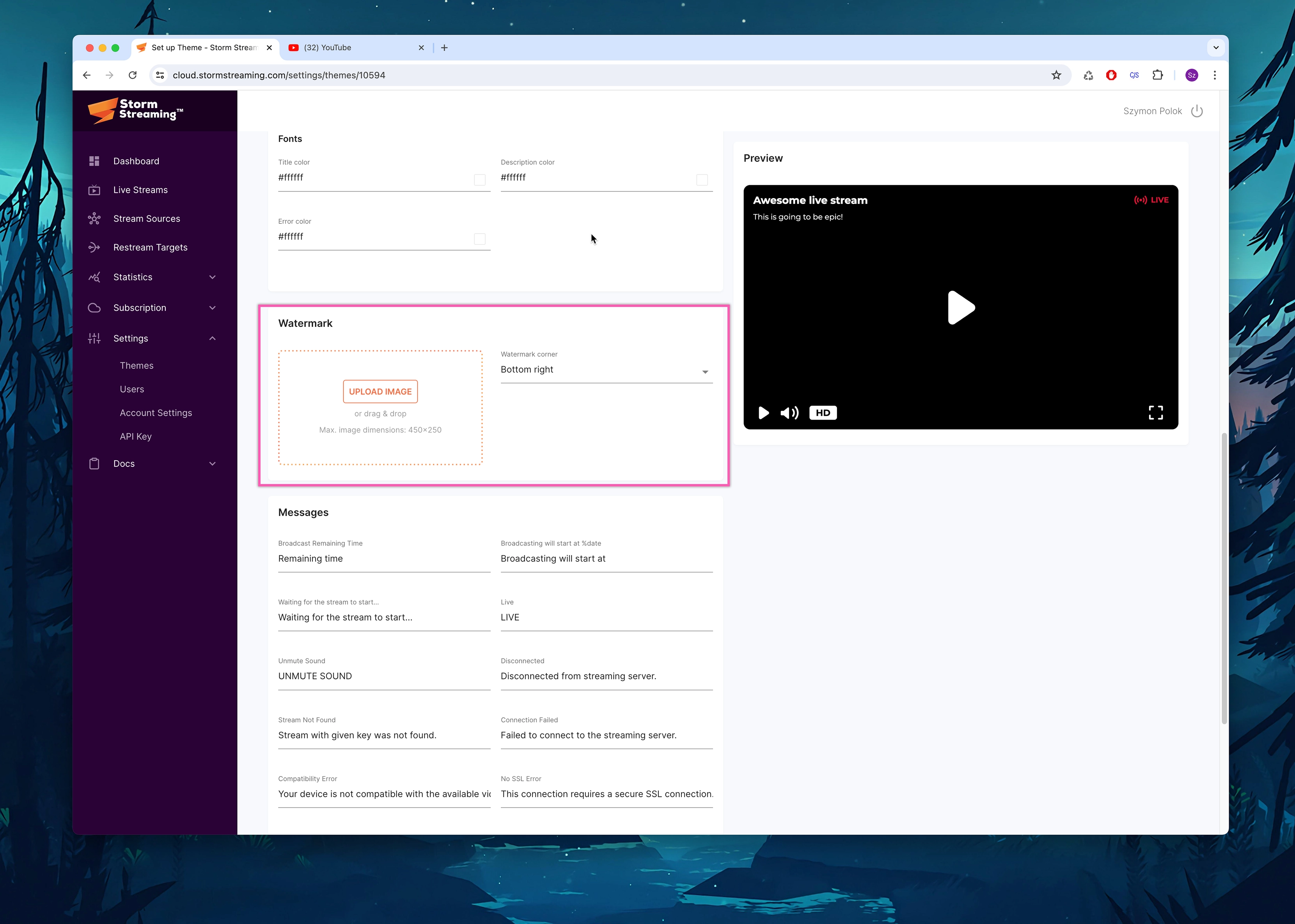
A watermark is a semi-transparent image that will be located in either the bottom right or bottom left corner of the Player screen, depending on your choice. We recommend using PNG or SVG files due to their support for transparency.
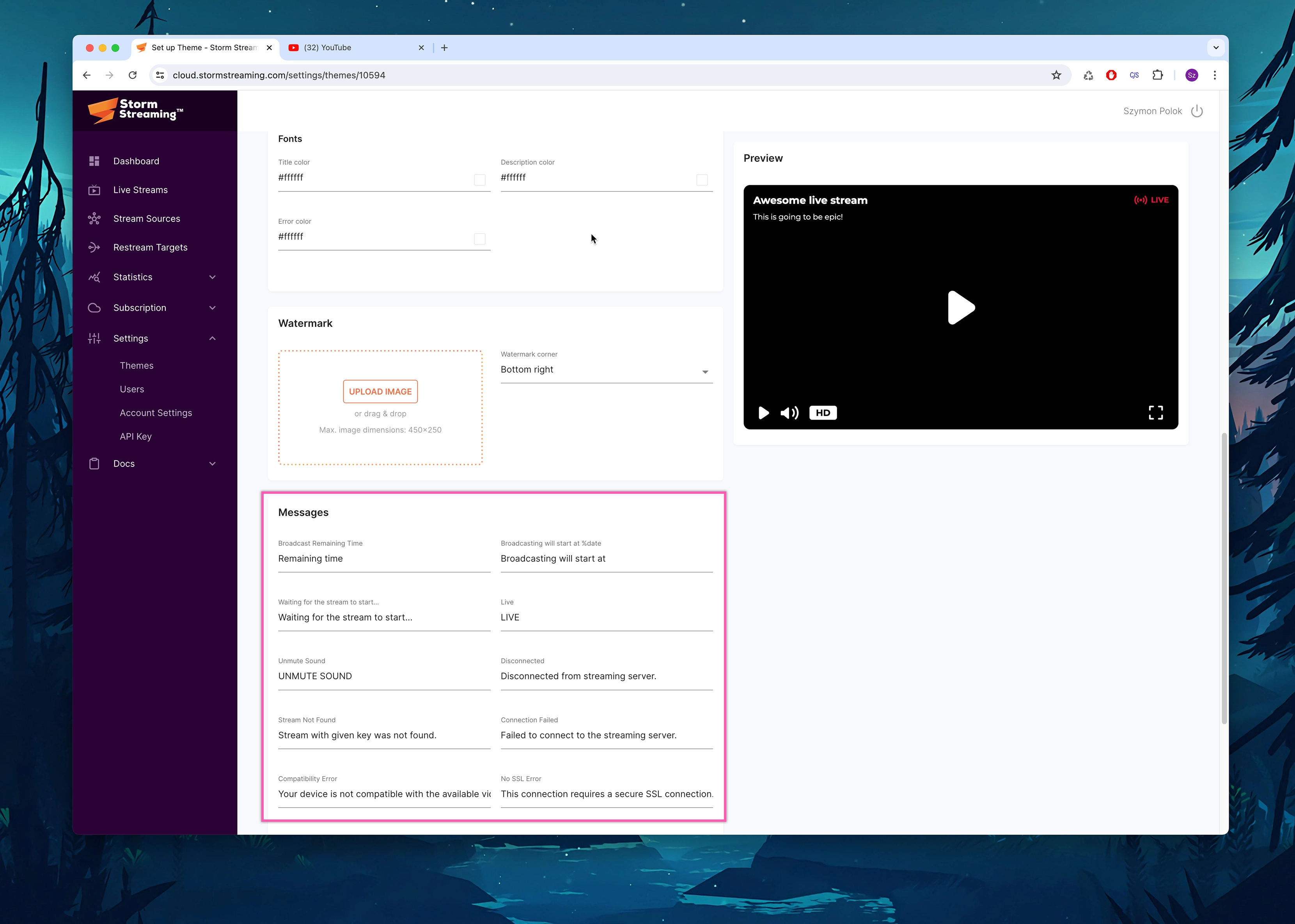
This section contains basic messages and alerts displayed by the player. There is the possibility to change or translate them as needed.
Manual Overriding of Configuration
It is possible to manually override any of the above parameters using configuration parameters of the Storm Player embed code. For this purpose, we recommend familiarizing yourself with the settings and configuration of the Storm JavaScript Player:
Create a free ticket and our support team will provide you necessary assistance.