
Restream to Facebook - Storm Streaming Cloud
In this guide, we will show you how to configure the restream feature so that your broadcast can be displayed simultaneously on Facebook.
Video Tutorial
Adding Facebook to the Restream Targets List
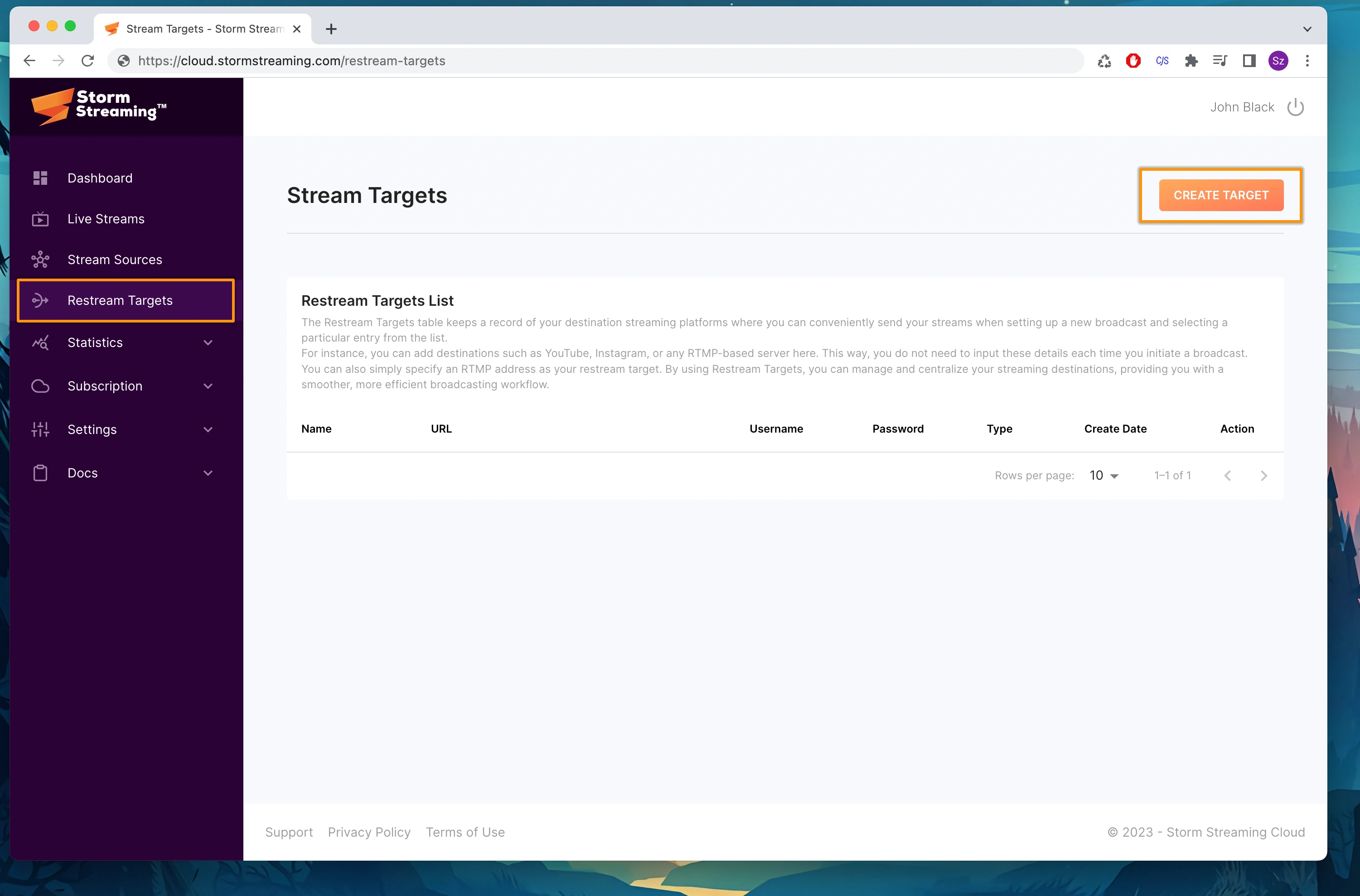
In Storm Streaming Server, you can save the data needed to restream your broadcast so that there is no need to enter it each time you create a new stream. To do this, go to the Restream Targets tab. Once there, we choose the Create Target option from the top left corner.
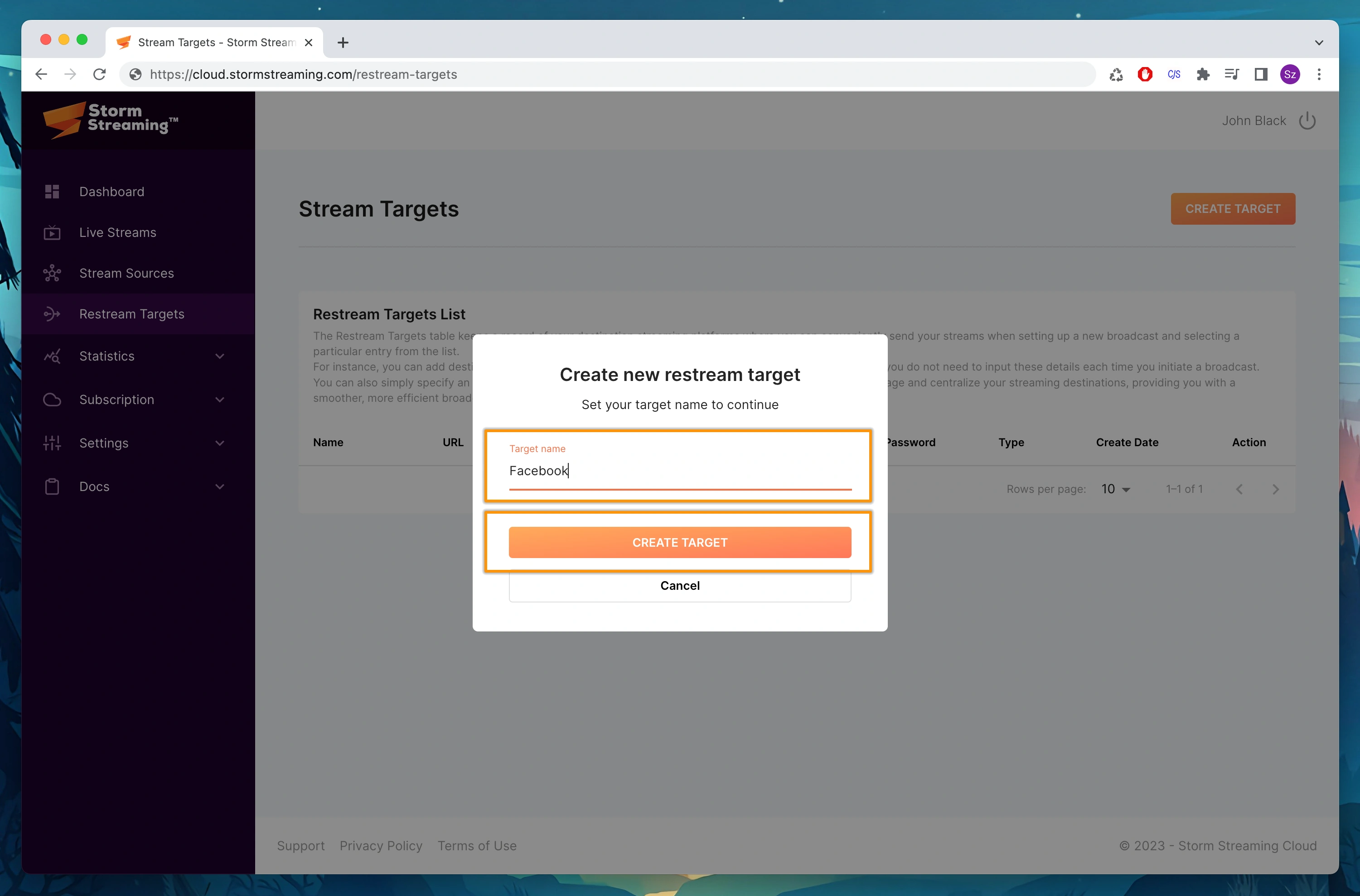
Now we need to provide the name of our target. The name can be anything, it's just to make it easier for you to identify it when you are creating the stream.
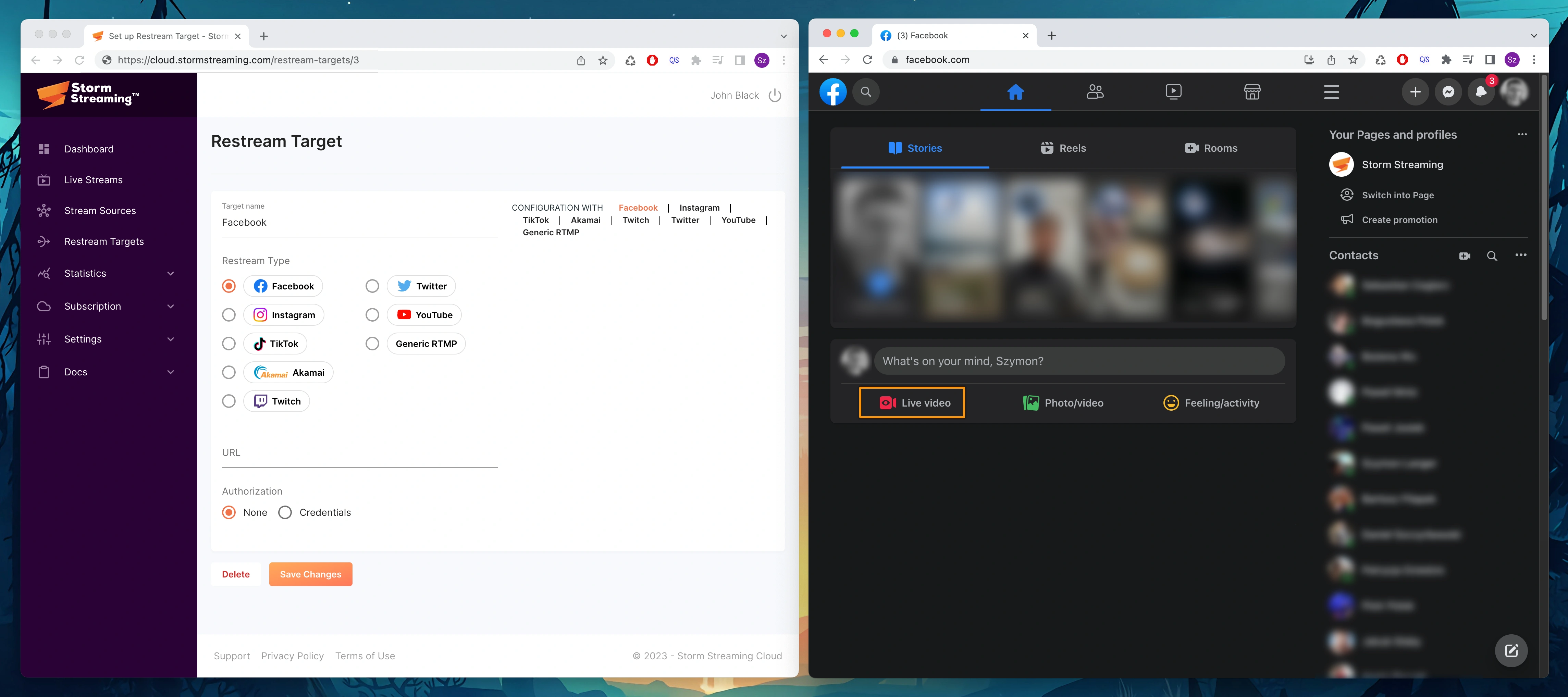
Now we log into our Facebook account and choose the Live video option from the main page.
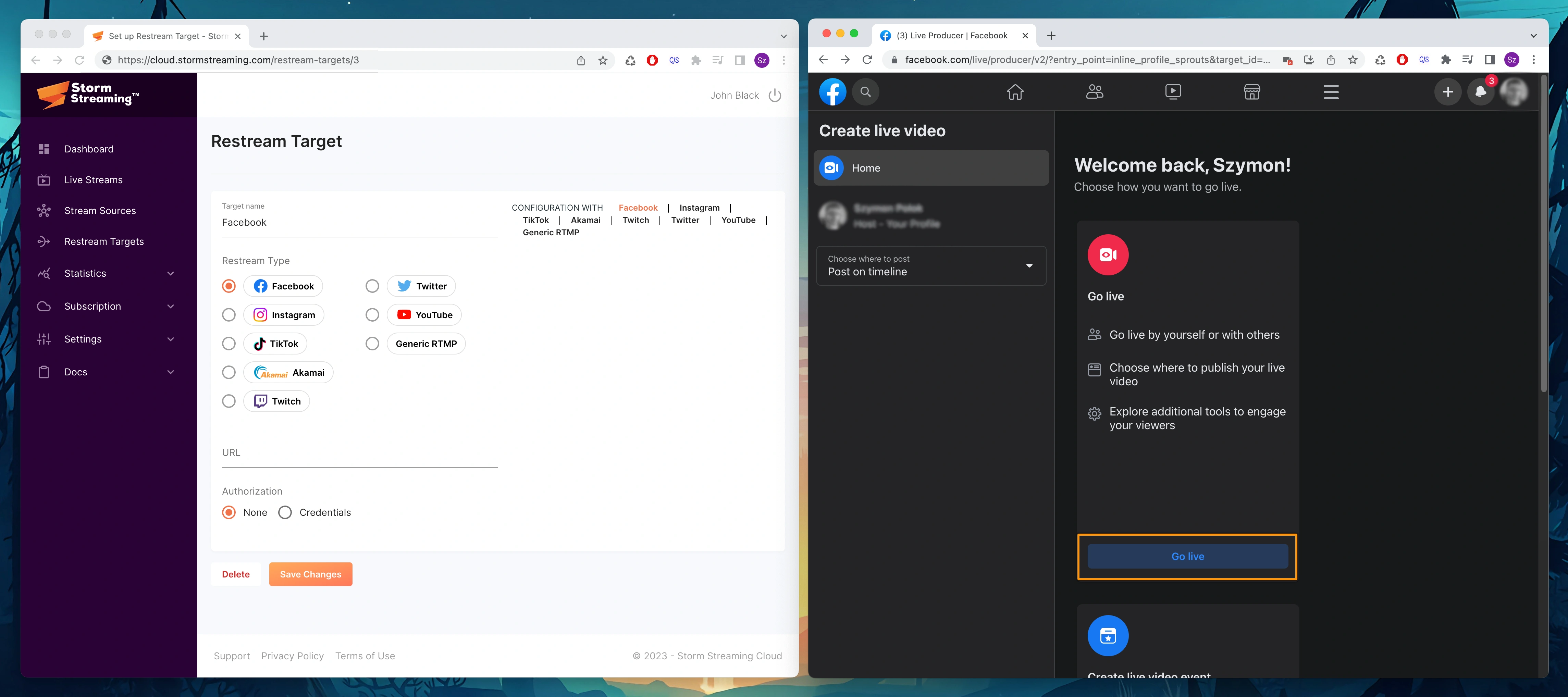
In the next step, we choose the Go live option (don't worry, we're not streaming anything yet).
We now have a choice of streaming methods. We choose the second option, which is Streaming software.
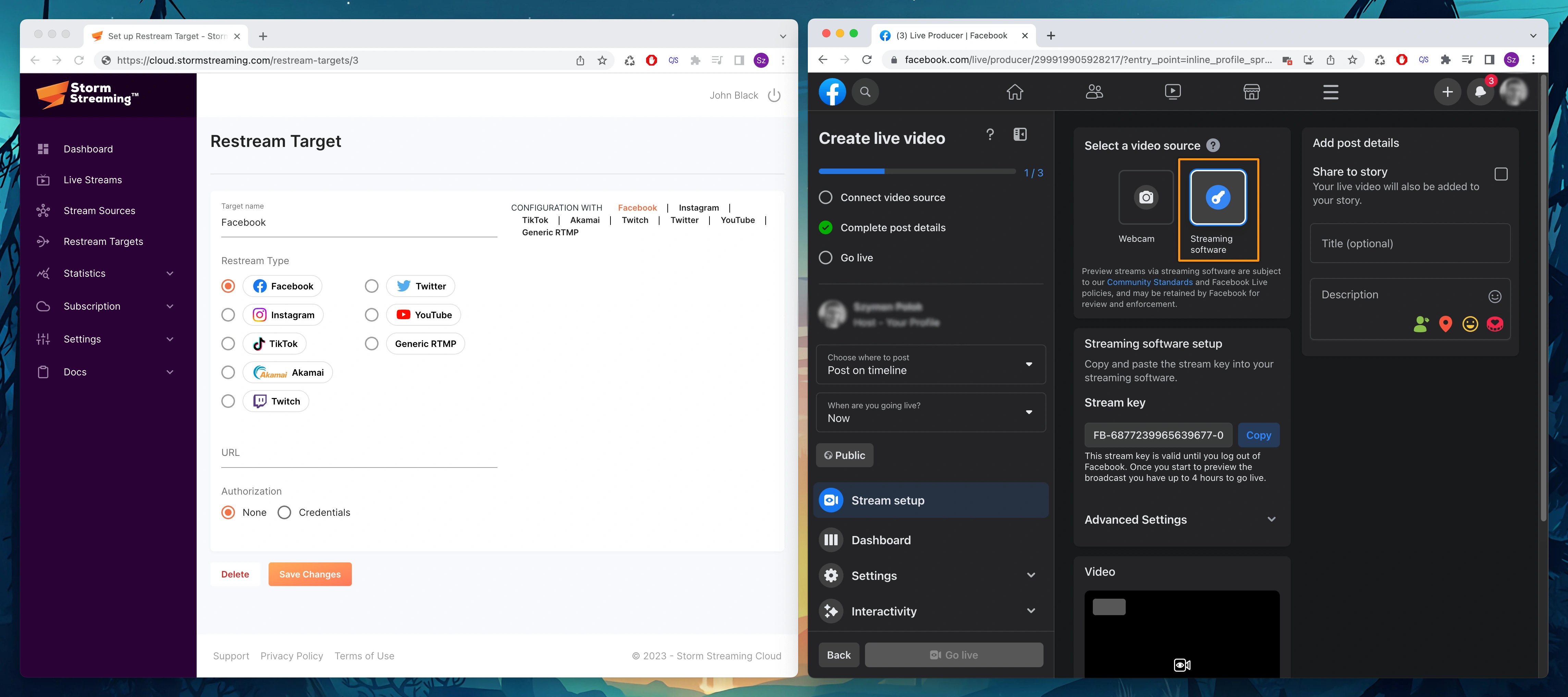
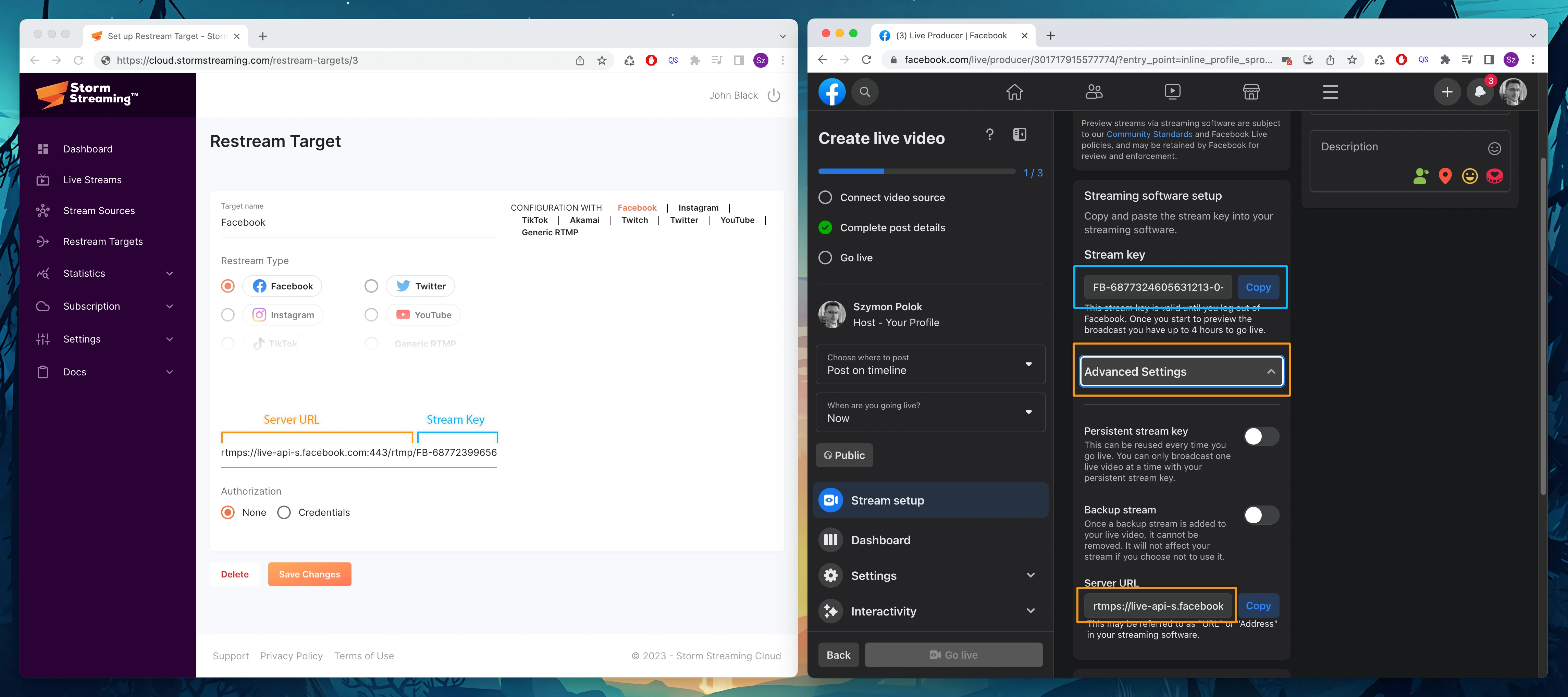
We select the Advanced Settings option, which is just below Stream Key. At this stage, we have everything we need to add a new item to Restream Target. In the Storm Cloud panel, we choose Facebook as the type, and then in the URL field, we combine Server URL with Stream key.
The correct address will start with rtmp:// or rtmps://, and a slash will be located between Server URL and Stream key.
Make sure that both the Stream key and Server URL are copied in their entirety. Not all forms display the full address due to their significant length.
Activating the Restream Target
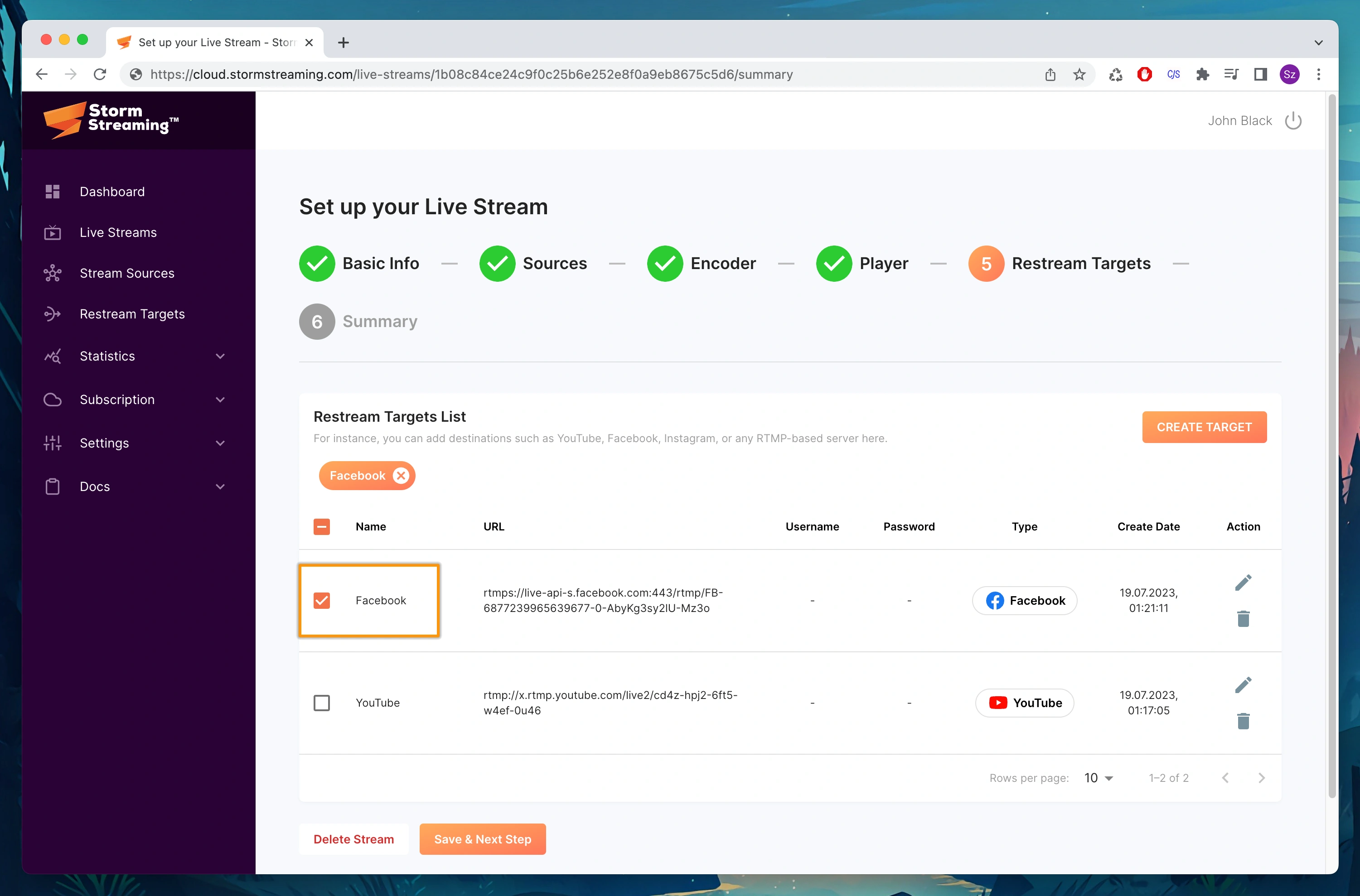
Our Restream target is already on the list. We can proceed to the new stream creator. We won't describe the entire process, but we will stop at step 5. This is where we can select all the Restream targets we have previously created.
From the list, we select Facebook and proceed further. Once the streaming begins, the stream will be automatically copied to Facebook. Just remember to publish your stream on Facebook too (otherwise no one will see it).
If you have any questions or need assistance, please create a support ticket and our team will help you.